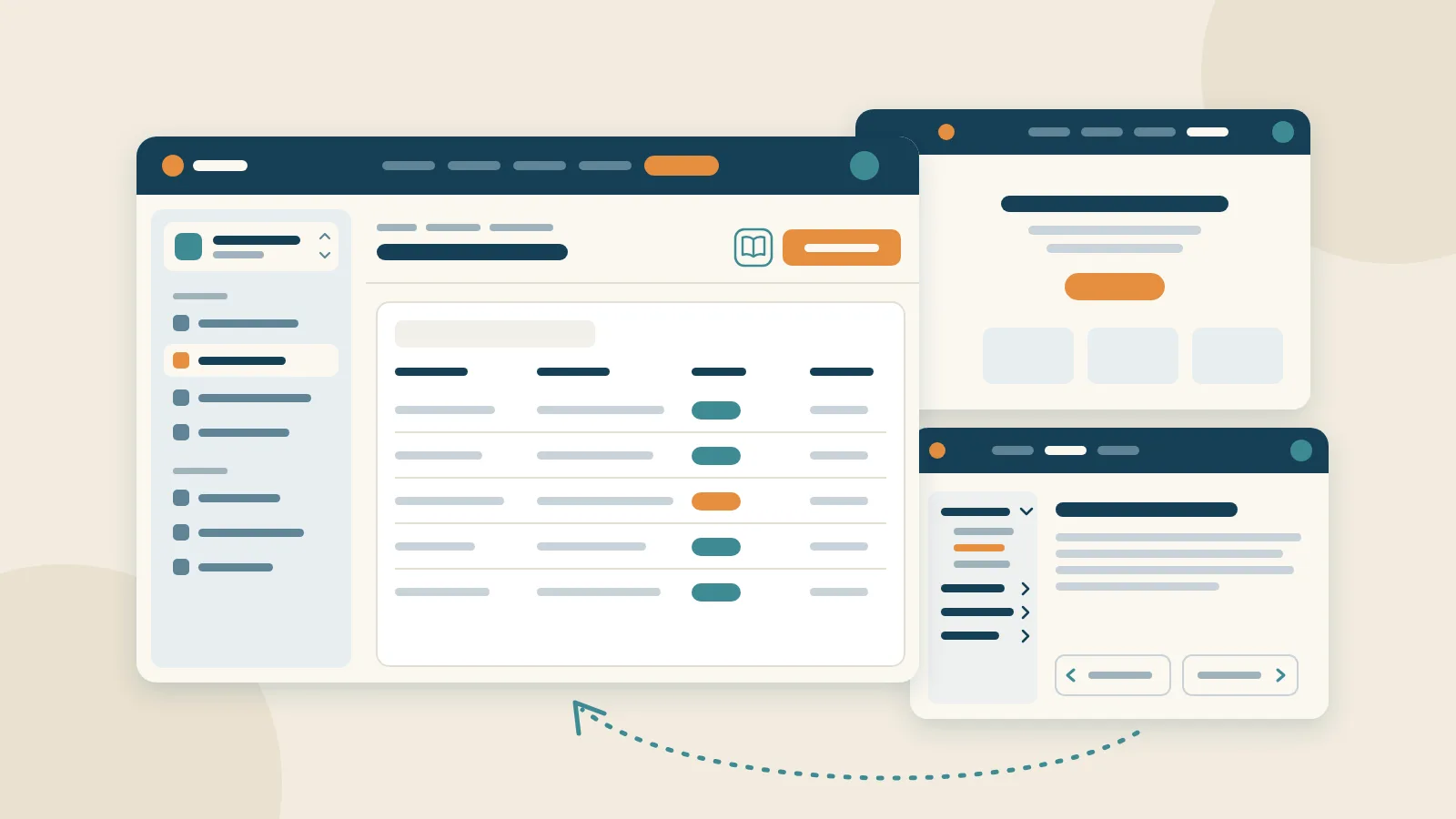
Until now, the website, the documentation and the Studio, the admin app of appsolut ONE, each had a header of their own. Moving from a manual page to the Studio and back felt like changing apps. As of today they share one navigation. This post walks through what changed, with Pannoniqa AG, the fictional organisation of our documentation.
One header everywhere
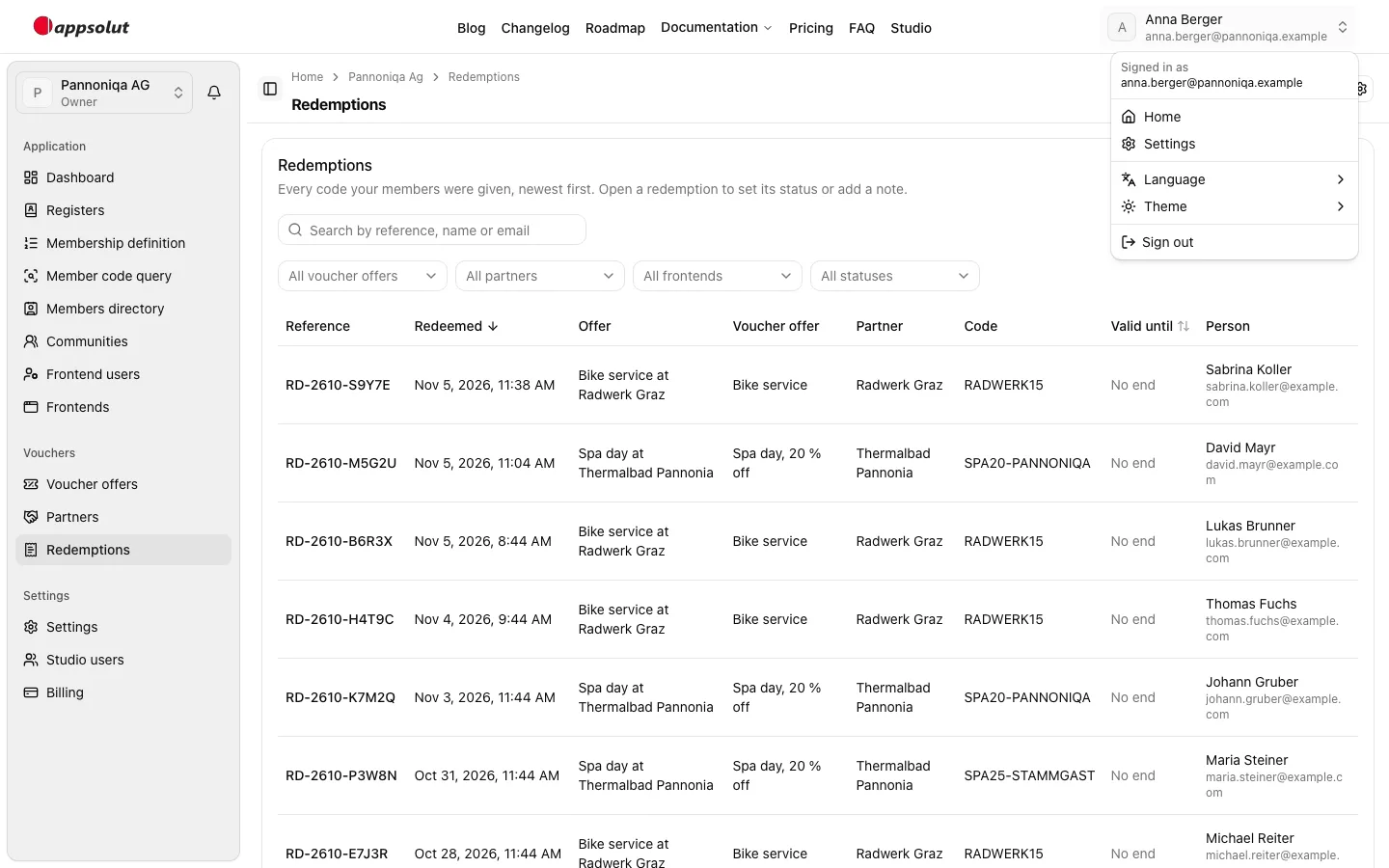
Every page now has the same header: the logo, the main navigation and your account menu, in the same place. Once you are signed in, the last entry of the main navigation is "Studio". It takes you into the Studio from the front page, the blog or any manual page, and back out is one click on "Blog", "Documentation" or any other entry.
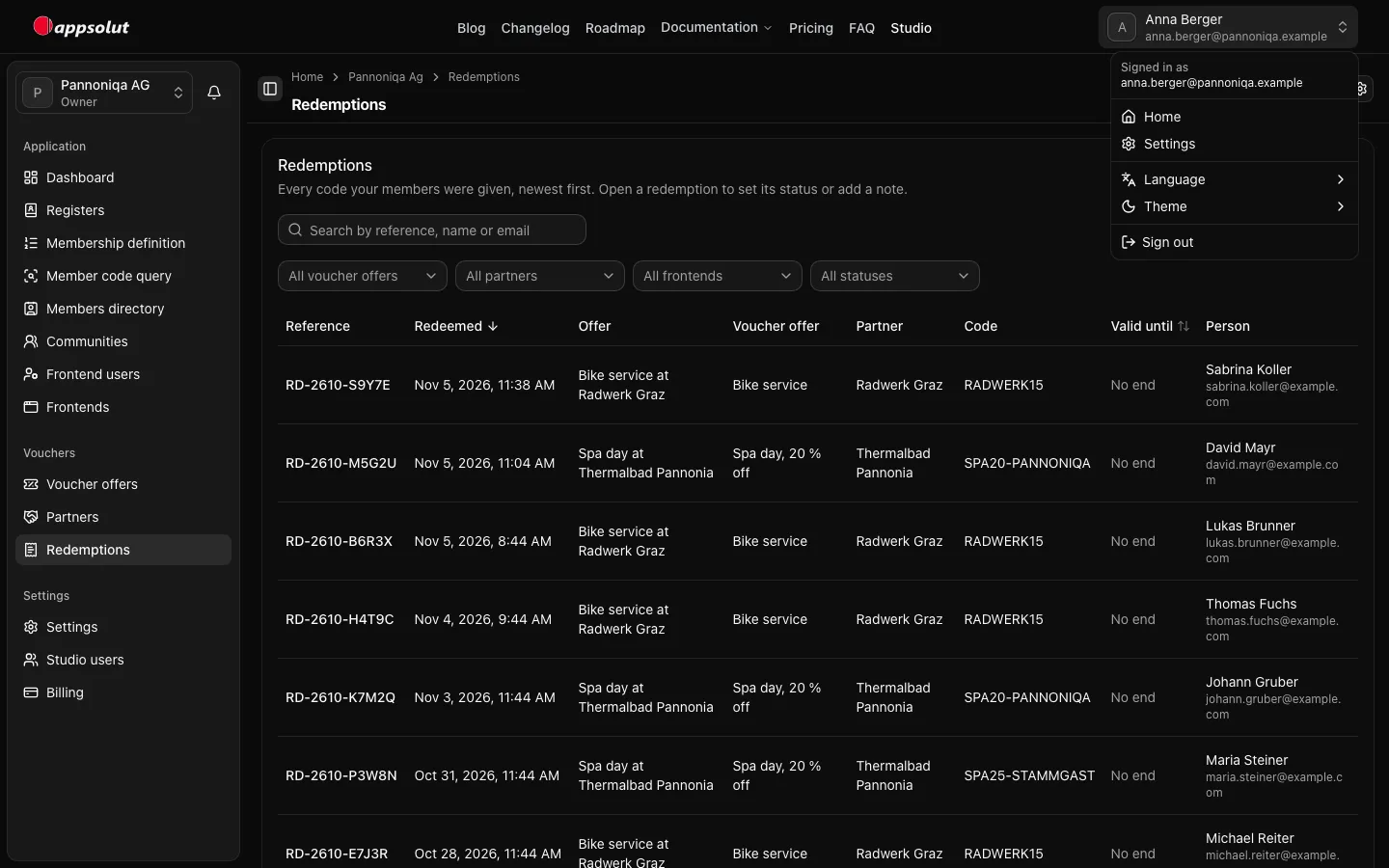
The account menu at the top right holds what is yours: "Home" opens your personal account, "Settings" its profile, password and multi-factor authentication. "Language" and "Theme" switch the language and light or dark mode on the page you are on, and "Sign out" signs you out.
Always clear where you are
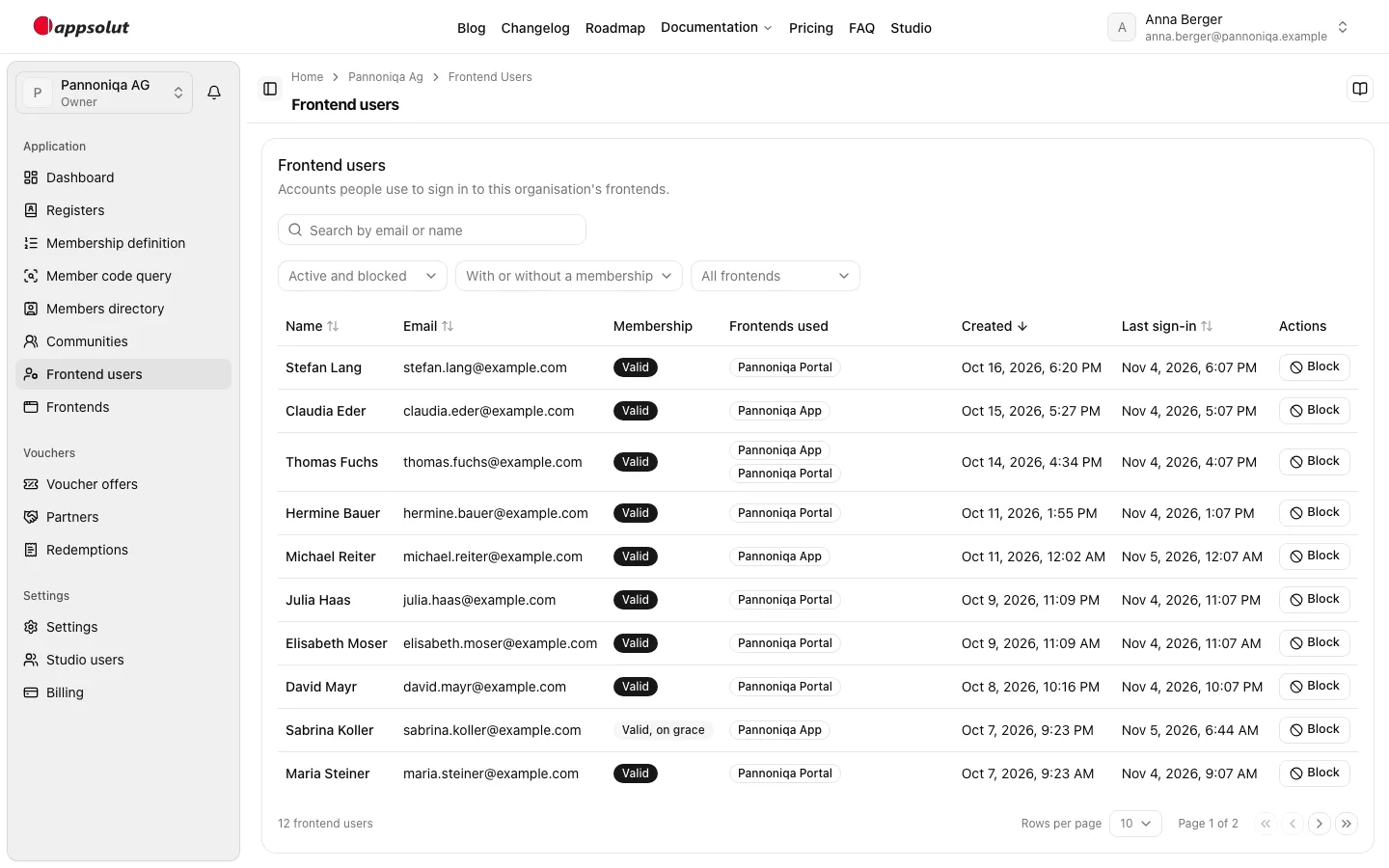
Below the header, the sidebar lists the pages of the area you are in: your personal account or an organisation. Each has its own colour: your personal account is near white and an organisation light grey, so you can tell at a glance whether you are working on your own account or on an organisation's.
At the top of the sidebar, the organisation switcher shows the organisation you are in, with your Studio role in it below the name, such as "Owner" or "Editor". It lists all your organisations in alphabetical order, each with your role, and takes you to another one in one step.
Above every page, the page header shows the breadcrumbs, the page's title and its actions, such as "Invite Studio Users". It stays in place while you scroll a long list, so the actions are always at hand.
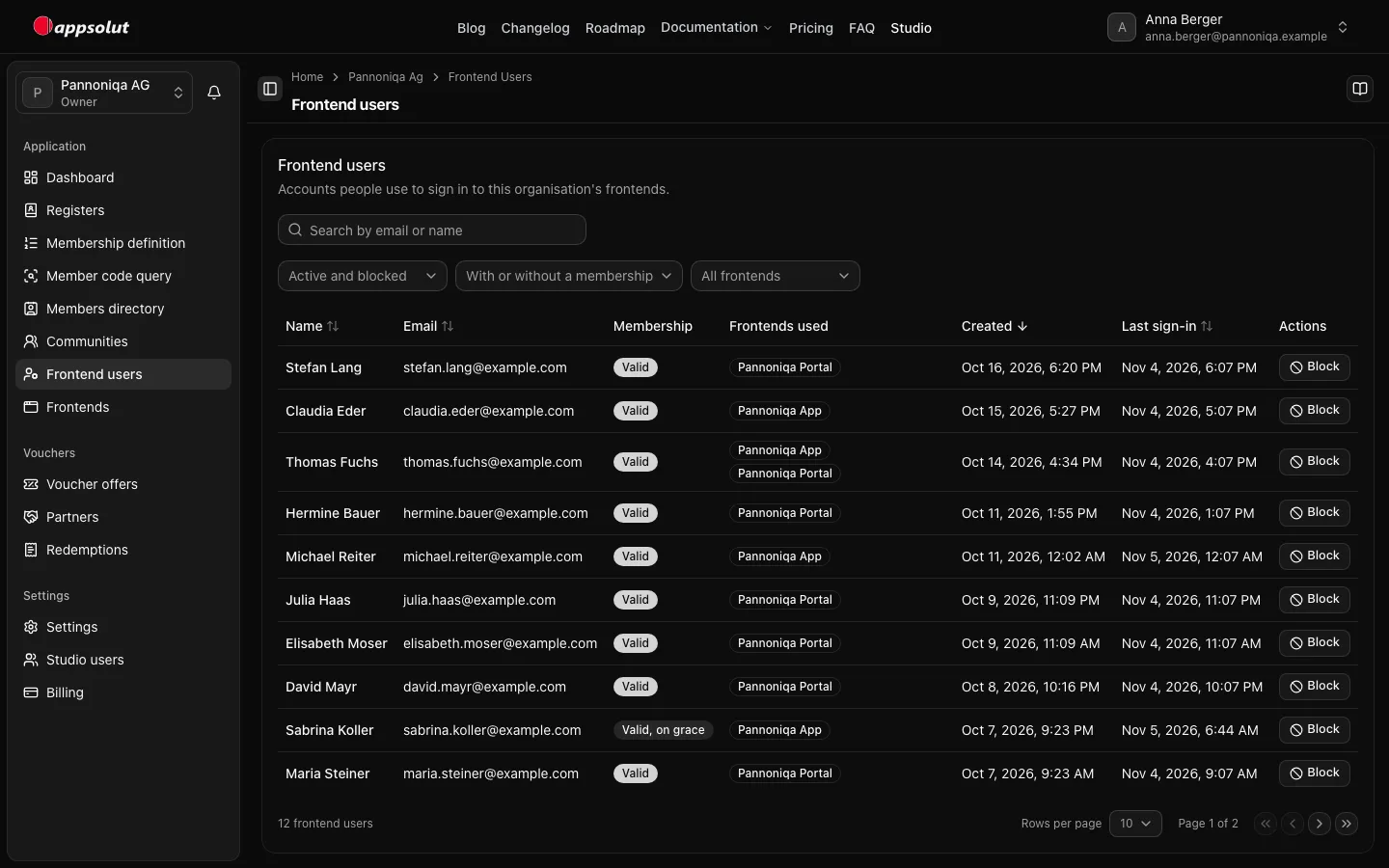
The Studio opens where you left off
The Studio remembers where you were. When you sign in, it opens the page you last had open, as long as you may still open it, or else the organisation you chose last, also on another device. The "Studio" entry on the website takes you to that same page.
In your personal account, the organisation switcher shows the organisation you last chose, and its first entry, "Back to Pannoniqa AG", returns you to the page you left there.
Help on every page
The first action in every page header of an organisation and of your personal account is "Documentation", a book. It opens the manual's page about the screen you are on, in a new tab, so nothing you have typed gets lost.
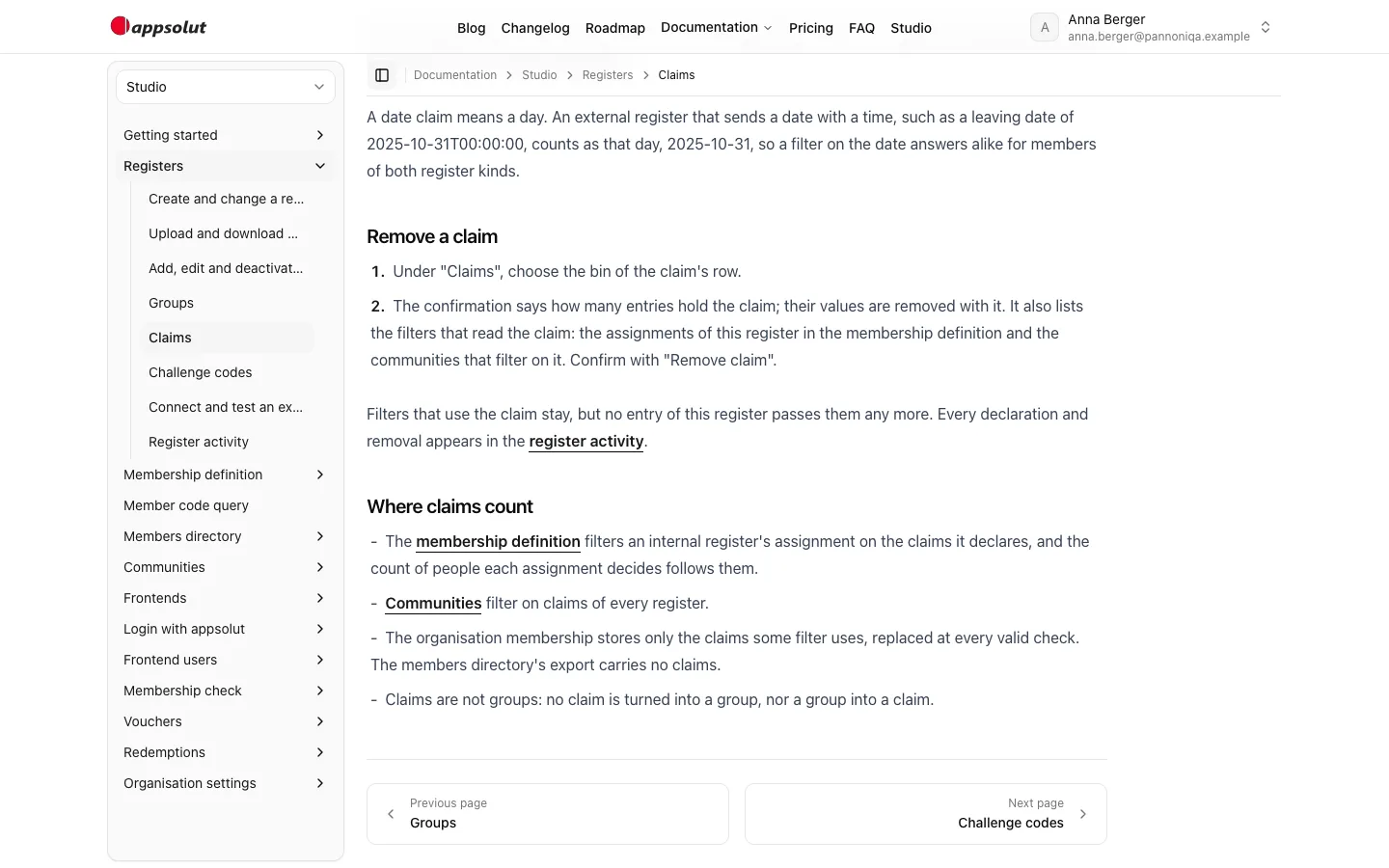
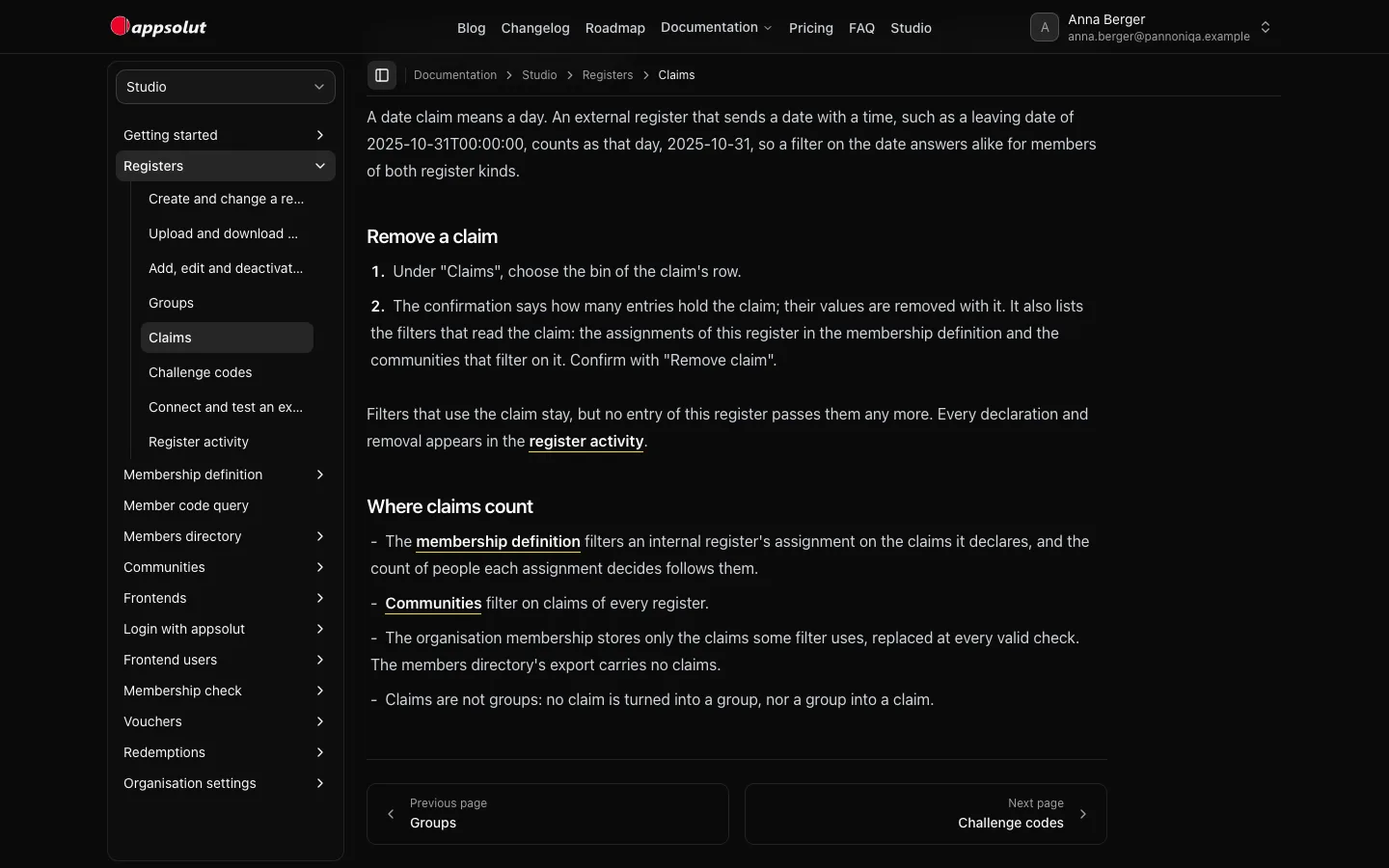
The documentation itself now has the same header, with a sidebar of its own that you can fold away, breadcrumbs, a select to switch between the documentation sets "Studio", "Portal" and "Developers", and "Previous page" and "Next page" at the end of every page, to read a section from start to finish. The sidebar's sections fold open and closed: the section of the page you are reading starts open, and the sidebar remembers the ones you open or close.
On a tablet and a phone
Every page is reachable on a smaller screen, too. On a tablet the sidebar folds to its icons and opens when you need it. On a phone, the menu button at the top left opens the main navigation, and its last entry opens the sidebar of the area you are in as a sheet over the page. On both, a page's actions are under "More actions", the button with three dots at the right of the page header, "Documentation" first, so the page title keeps its room.
What's next
The new navigation is live for every Studio user from today. The Studio manual describes it in "Find your way around the Studio". If something does not work the way you expect, let us know.