Getting started
What the Studio is, and how to begin.
appsolut ONE is the enterprise community server. It has two parts: the Studio, its admin app, and the Community Portal, a customer-facing website your organisation connects to the Studio. This manual is about the Studio.
What the Studio does
In the Studio, an organisation decides who its members are and which of its apps they may use. Its Studio users:
- keep the registers, the lists of people who may qualify as members, such as an export from the HR system or a list of retirees;
- set up the membership definition, the ordered rules that decide who becomes a member;
- create communities, named filters over the members, such as "Active employees" or "Retirees";
- connect frontends, the websites and apps the organisation's people sign in to with Login with appsolut.
When a person signs in to a frontend for the first time, the Studio checks them against the registers. If they pass, they become a member, and every frontend of the organisation knows which communities they belong to.
An example
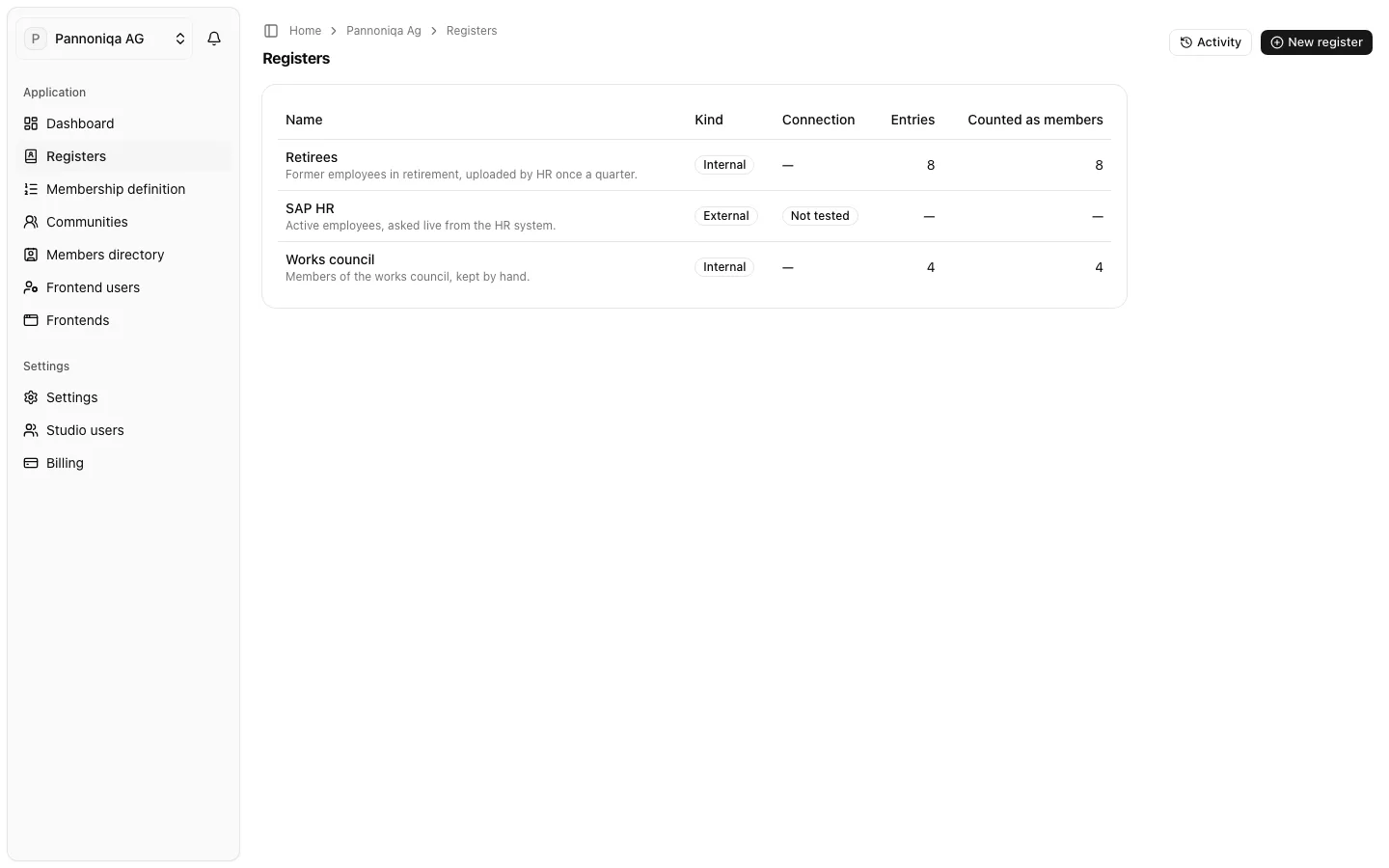
The examples in this manual use Pannoniqa AG, a fictional manufacturer. Pannoniqa connects its HR system as the external register "SAP HR" for active employees, and keeps two internal registers in the Studio: "Retirees" and "Works council". Its communities are "Active employees", "Retirees" and "All staff". The "Pannoniqa Portal", a Community Portal, serves all staff; the mobile "Pannoniqa App" serves active employees only.
Find your way around the Studio
Every page of the Studio has the website's menu at the top, with your account menu at the top right. Below it:
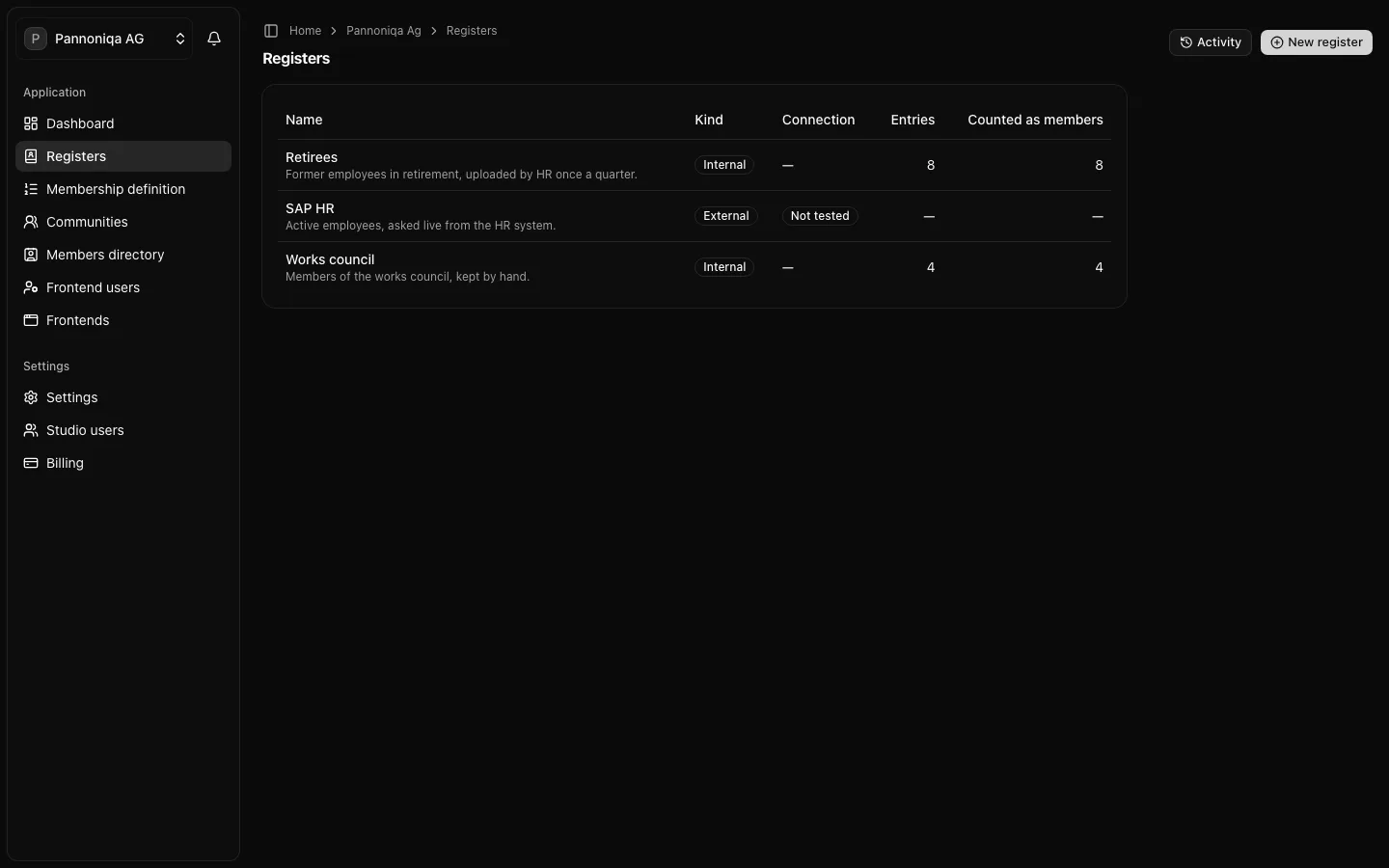
- The sidebar on the left lists the pages of the place you are in: your personal account or an organisation. Each has its own colour: your personal account near white, an organisation light grey. In dark mode your personal account is nearly black and an organisation dark grey. At its top, the organisation switcher shows the organisation you are in, with your Studio role, and takes you to your other organisations.
- The page header shows where you are, the page's title and its actions, such as "Invite Studio Users". It stays at the top while you scroll. The button at its left folds the sidebar to its icons and opens it again. The first of its actions, "Documentation" (a book), opens this manual's page about the page you are on, in a new tab, so nothing you have typed is lost.
The sidebar shows only the pages your Studio role and permission sets allow. Permissions lists which permission each page and action needs.
On a tablet the sidebar shows only its icons until you open it. On a phone it opens over the page: with the button next to the page title, or from the menu button at the top left, whose last entry is "Organisation navigation" ("Personal account navigation" in your personal account). The page header then shows the page above this one as a link back. On a tablet and a phone, the page's actions are under "More actions", the button with three dots at the right of the page header: it lists them all, "Documentation" first. A page whose only action is "Documentation" shows the book instead.
In this section
- Key concepts: the terms the rest of the manual uses.
- Sign in: sign in to the Studio and accept an invitation.
- Create and switch organisations: set up your organisation and move between organisations.