Drafts, publishing and preview
Work on a draft, preview it, publish it now or at a set time, and go back to an earlier version.
Backend Roles: every Portal editor.
Which documents have drafts
Pages, Posts, Travels, Benefits and Hotels have drafts, and so do Layout Templates and Index Pages: what you change stays a draft until you publish it, and visitors see the last published version meanwhile. The admin saves your draft automatically as you type.
Everything else is live as soon as you choose "Save": the Taxonomies that gather content, such as Destinations, Travel Topics, Benefit Topics and Catalogs, the lists that only supply data, and the site settings. A page that gathers content should not be hidden behind a draft of its own.
Publish
- Make your changes. The "Status" at the top changes from "Published" to "Changed".
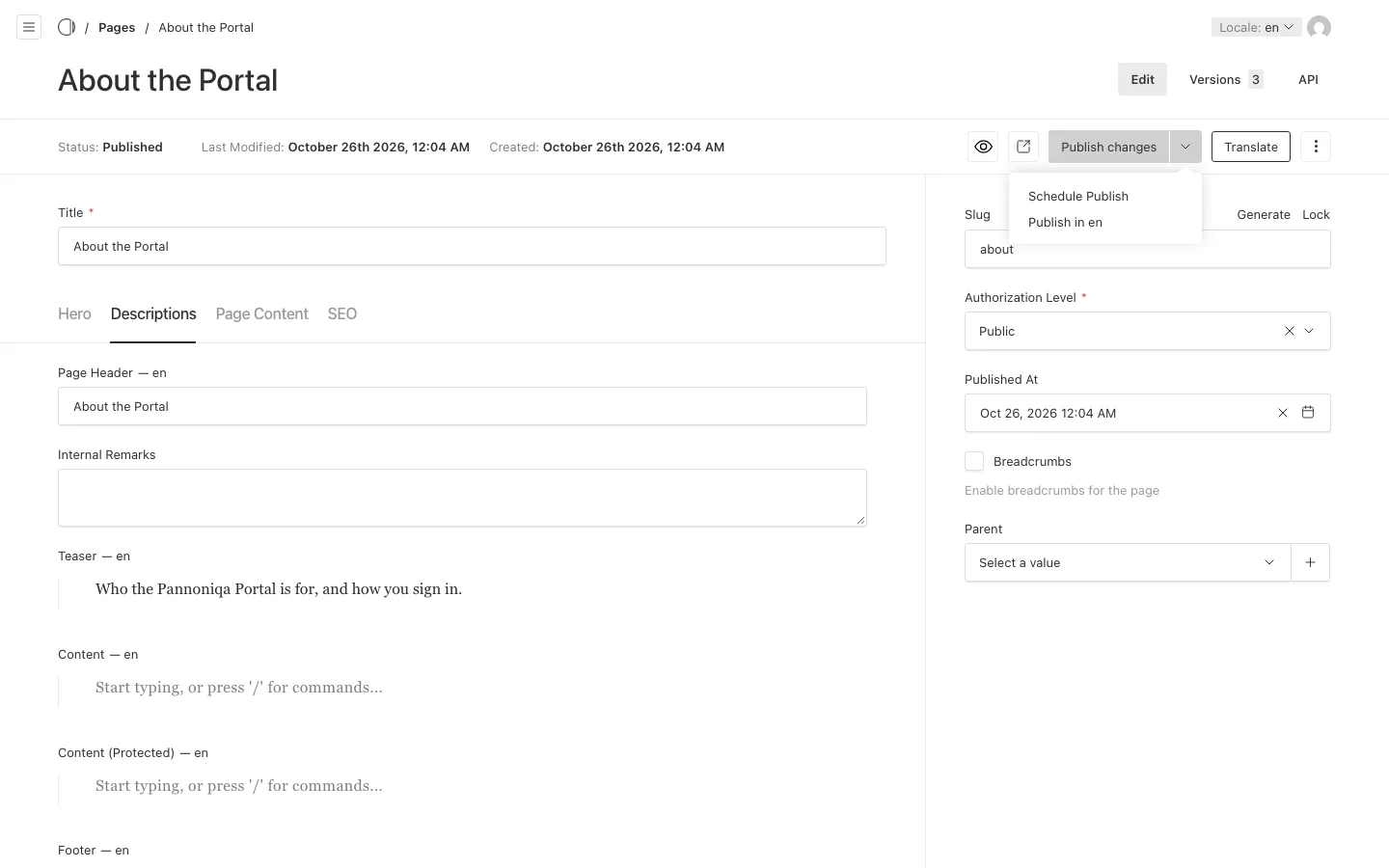
- Choose "Publish changes".
The open arrow beside "Publish changes" offers "Publish in en" (or the language you are editing): it publishes only the changes in that language and leaves the other languages as they were published.
Publish at a set time
- Open the arrow beside "Publish changes" and choose "Schedule Publish".
- Choose whether to publish or unpublish, and the date and time.
- Confirm the schedule.
The Portal runs scheduled publishing every five minutes, so a schedule can take effect up to five minutes after the time you chose. "Published At" in the sidebar is the date the Portal shows and sorts by, for example on a post; it does not publish anything by itself.
Preview
- The eye button opens the "Live Preview" beside the form. It shows the page as you type, as a phone, a tablet or a desktop screen.
- The button beside it opens the preview in a new browser tab.
The preview shows the page as a signed-in person sees it, because you are signed in to the admin: you see the "Content (Protected)" and not the "Content (Anonymous)". To see the page as a visitor who is not signed in, open the published page in a private browser window.
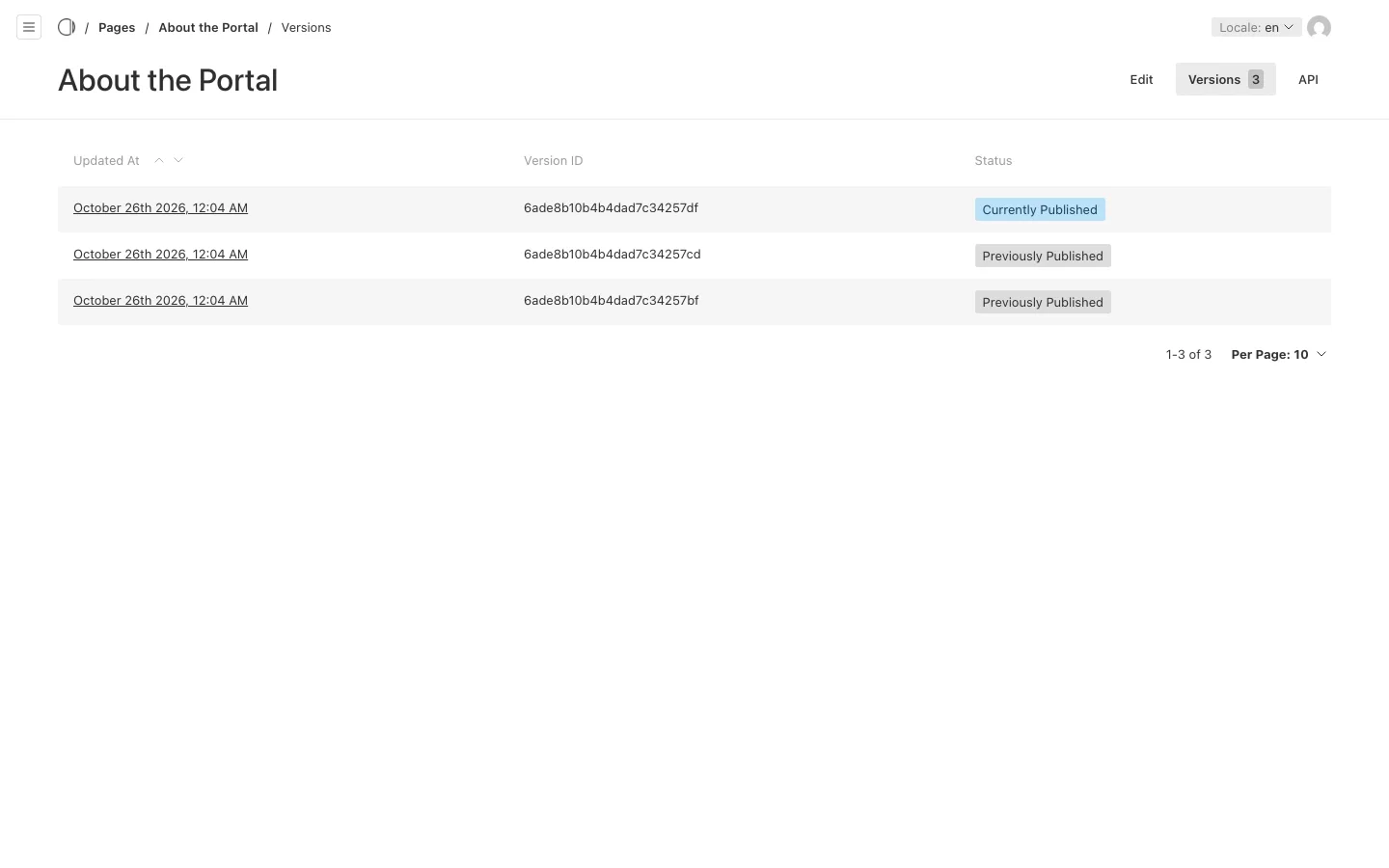
Versions
Each publish and each draft is kept as a version, up to 50 per document. Choose "Versions" at the top of a document to see them. Open a version to compare it with the current one, and choose "Restore this version" to go back to it.