Create a frontend
Add a website or app, choose the community that serves it and decide whether membership is mandatory.
Studio roles: "Owner", "Administrator" and "Frontend manager".
Every frontend needs a community, so create the community first. Without one, the dialog says "A community is needed first" and, if your Studio role allows it, links to "Communities".
Create a frontend
- Open "Frontends" in the sidebar.
- Choose "New frontend".
- Enter the "Name", for example "Pannoniqa Portal". Frontend users see this name on the sign-in screens, so use the name they know.
- Under "Kind", choose "Internal" for a website or mobile app of your own, or "External" for an app of someone else that you connect. You cannot change the kind later.
- Under "Community", choose the community that may use the frontend, for example "All staff".
- Leave "Membership mandatory" on if only members of that community may use the frontend. Switch it off if anyone with an account may sign in.
- Choose "Create frontend".
The frontend appears in the list with its "Kind", "Community", "Membership" ("Mandatory" or "Optional") and its "Active keys". Choose its name to open it.
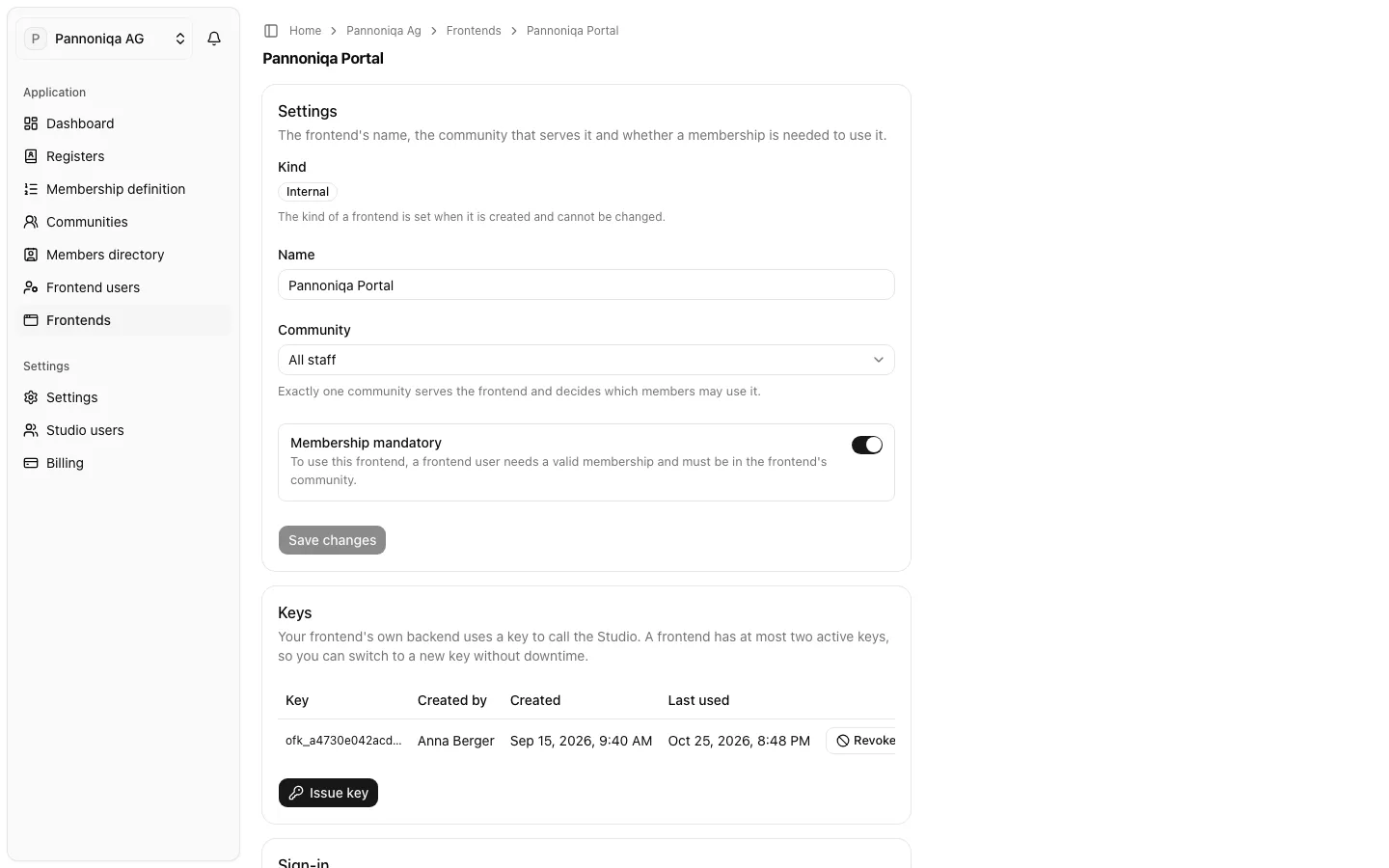
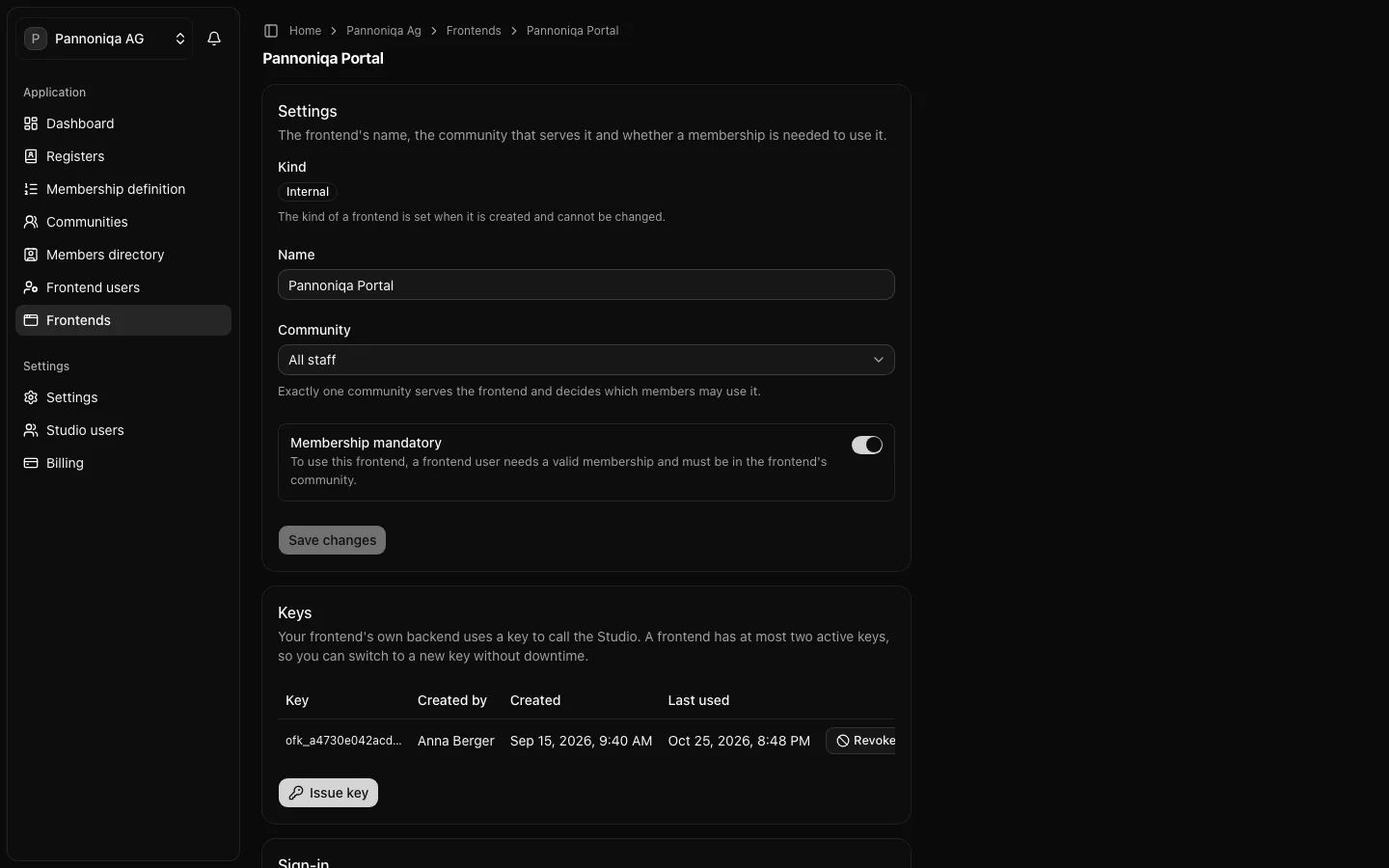
Change the name, community or membership rule
- Open the frontend.
- Under "Settings", change the "Name", the "Community" or "Membership mandatory".
- Choose "Save changes".
If you change the community or the membership rule, the Studio asks you to confirm: "This changes who may use the frontend". From the moment you save, the new rule decides who may use the frontend, and frontend users who no longer qualify cannot use it any more.
Two frontends of one organisation cannot have the same name.
Next steps
- If the frontend's backend calls the Studio, issue a frontend key.
- To sign users in with Login with appsolut, set up the sign-in settings.