Upload and download entries
Fill an internal register from an Excel or CSV file, and download its entries.
Studio roles: "Owner" and "Administrator", and Studio users with a permission set that holds "Community: manage". For the upload, a permission set that holds "Upload register entries" is enough too: it includes editing entries, but not the download. Generating challenge codes needs both "Upload register entries" and "Download register entries". To download, a permission set that holds "Download register entries" is enough too, a stakeholder's included. Permissions lists what each permission gives.
Uploads and downloads are for internal registers. An external register keeps its people in your own system.
How an upload changes a register
"The upload merges by member code: new codes are added, existing entries are updated, and entries that are not in the file stay as they are. Nothing is written until you confirm."
An upload never removes anyone. To take a person out, deactivate their entry: in the file, with the column "Deactivated" (yes, no, or the date of deactivation), or by hand.
Upload a file
- Open the register and choose "Upload file".
- Choose an Excel workbook (.xlsx) or a CSV file saved as UTF-8, with a header row. In a CSV file, cells may be separated by commas or semicolons. If the workbook has several sheets, choose the one that holds the entries.
- Map the columns. For each "Column in the file", choose the "Field" it fills, or "Ignore". The "Member code" must be mapped. The Studio suggests the field for column names it knows, such as the headers of a downloaded register or "Personalnummer". Each claim the register declares is a field too, "Claim: Working hours per week" for instance; the Studio suggests it for a column named "Claim: employmentLevel", as the download writes it, or named by the claim's key alone.
- Choose "Continue".
- Read the "Validation report". If the file has problems, the report lists each one with its row: "Nothing can be written while the file has problems." Fix them in the file and choose it again.
- Check the "Preview" of the first entries and the "Summary": how many entries are "Added", "Updated", "Unchanged", "Deactivated" or "Reactivated", and how many challenge codes are set or replaced.
- Choose "Confirm upload".
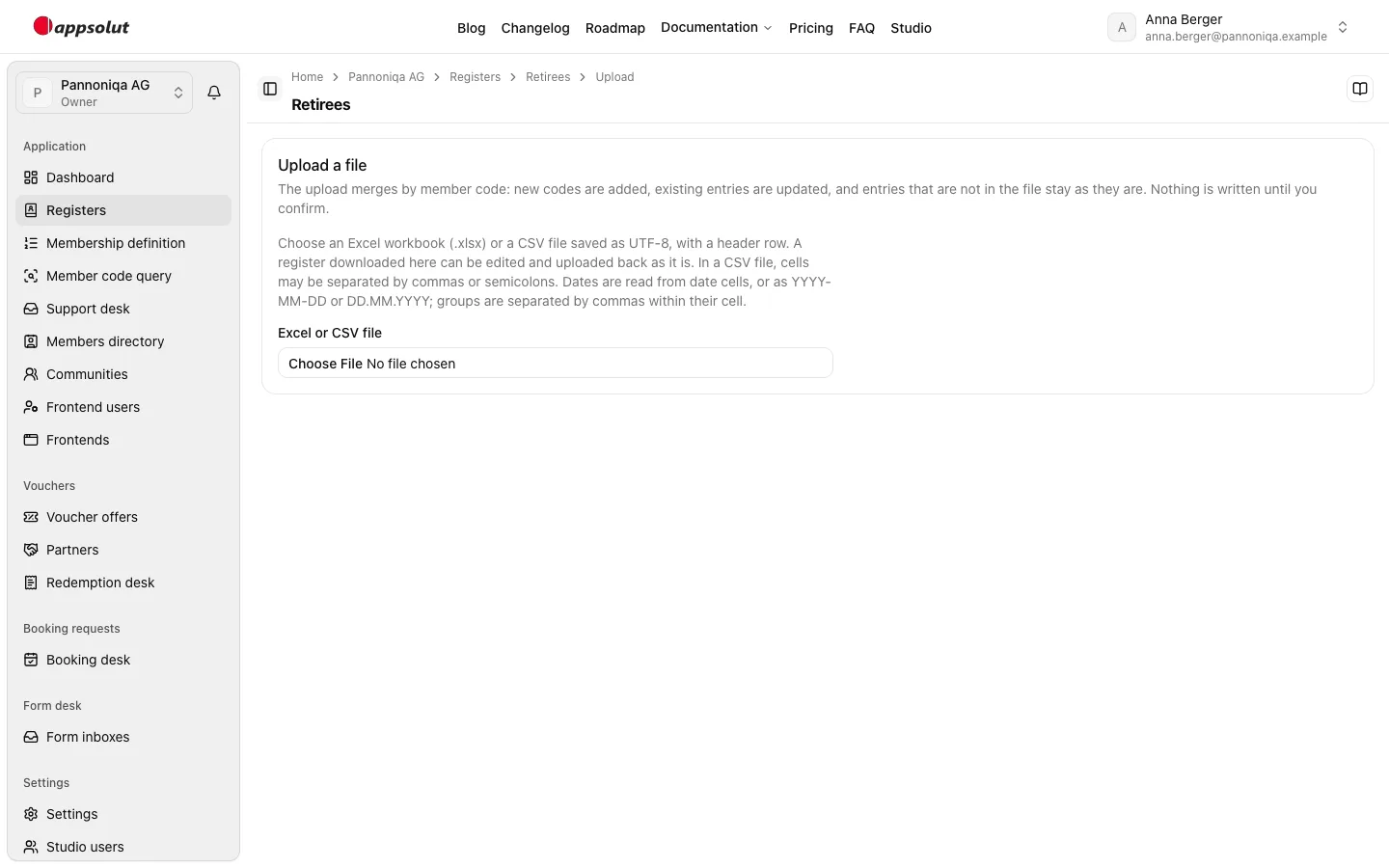
When the upload is done, the page says "Upload complete". Every changed entry appears in the register activity.
What the cells mean
- A field without a column stays as it is. An empty cell in a mapped column clears its field, except in these columns:
- an empty status means active;
- an empty "Deactivated" cell means not deactivated, so the upload reactivates a deactivated entry. Leave the column unmapped to keep deactivated entries as they are;
- an empty "Challenge required" cell means yes;
- an empty challenge code keeps the stored code (see below).
- Dates are read from date cells, or as YYYY-MM-DD or DD.MM.YYYY.
- Several groups share one cell, separated by commas.
- The status is active, inactive or pending.
- The country ("Country", also "Land" or "country code") is a two-letter code, such as AT, or the country's English or German name, spelled exactly; case does not matter. A country the Studio does not know, a name that fits more than one country, or a country that is no longer offered on an entry that does not have it yet is a problem in the "Validation report". An entry that already has such a country keeps it.
- The challenge code: "an empty cell keeps the stored code, and a code in the file sets or replaces it. Only its hash is stored." See Challenge codes.
- A claim: a cell sets the claim, an empty cell removes it from the entry, and a claim without a column stays as it is. The cell must fit the claim's type: a yes-or-no claim reads yes or no as "Deactivated" does (yes, ja, true, 1, x; no, nein, false, 0), a date as the birth date does, and a number with a point or a comma. Working hours per week are given in hours, never as a percent: 38.5 and 38,5 both read as 38.5 hours, while a cell formatted as a percent, such as 50%, does not fit. A cell that does not fit, such as abc for a number, 120 for a whole percent or 200 for the working hours per week, is a problem in the "Validation report".
If writing stops
A large file is written in parts. If writing stops, for example because the network dropped, "The entries written so far stay." Choose "Try again" to continue: entries already written are not changed twice, and uploading the same file again reaches the same result.
If a country in the file was deactivated or removed from the list while you uploaded, trying again cannot help: "A country in the file can no longer be chosen." Choose "Choose the file again"; the "Validation report" then shows which country, and in which row. The same goes for a claim removed from the register, or added again with another type, while you uploaded: "A claim of the file was removed or changed since you chose it. Choose the file again."
Download a register
Open the register and choose "Download". It shows to Studio users who may download register entries: with "Community: manage", or with "Download register entries" alone, which opens the registers for reading and the download and changes nothing. You get an Excel workbook with every entry of the register, deactivated ones included, with the column headers in the language you use the Studio in. The country is written as its two-letter code. After the fields comes one column per declared claim, headed "Claim:" and the claim's key, such as "Claim: employmentLevel"; yes and no are written in the file's language. You can edit the file and upload it back as it is.
The download never contains challenge codes: the Studio keeps only their hashes, so the challenge code column stays empty.