Add, edit and deactivate entries
Keep an internal register by hand: add an entry, change it, and switch it off or on again.
Studio roles: "Owner" and "Administrator", and Studio users with a permission set that holds "Community: manage". A permission set that holds "Edit register entries" is enough too: with it you add, edit, deactivate and reactivate the entries of internal registers, without the rest of Community. Permissions lists what each permission gives.
Pannoniqa AG keeps its "Works council" register by hand: a few people, changed whenever the council changes. For a register of hundreds of people, an upload is quicker.
Find an entry
Open the register. Under "Entries", search with "Search by member code or name". Deactivated entries are listed too; clear "Show deactivated entries" to hide them.
The table shows 10 entries a page. Choose 20, 50 or 100 under "Rows per page", below the table, to see more at once; the table starts again at its first page. The Studio remembers your choice in this browser and uses it the next time you open a register, for every register and in every organisation. A link to a register's entries someone shares with you opens with the number of rows it was copied at and leaves your own choice as it is. Only a link to the first page at 10 rows opens with your own choice.
Choose an entry's member code to open it. Studio users with a permission set that holds "Community: read" see everything the entry holds there, under "Entry", without changing it.
Add an entry
- Choose "Add entry".
- Enter the "Member code". "Only the member code is required. It must be unique in this register."
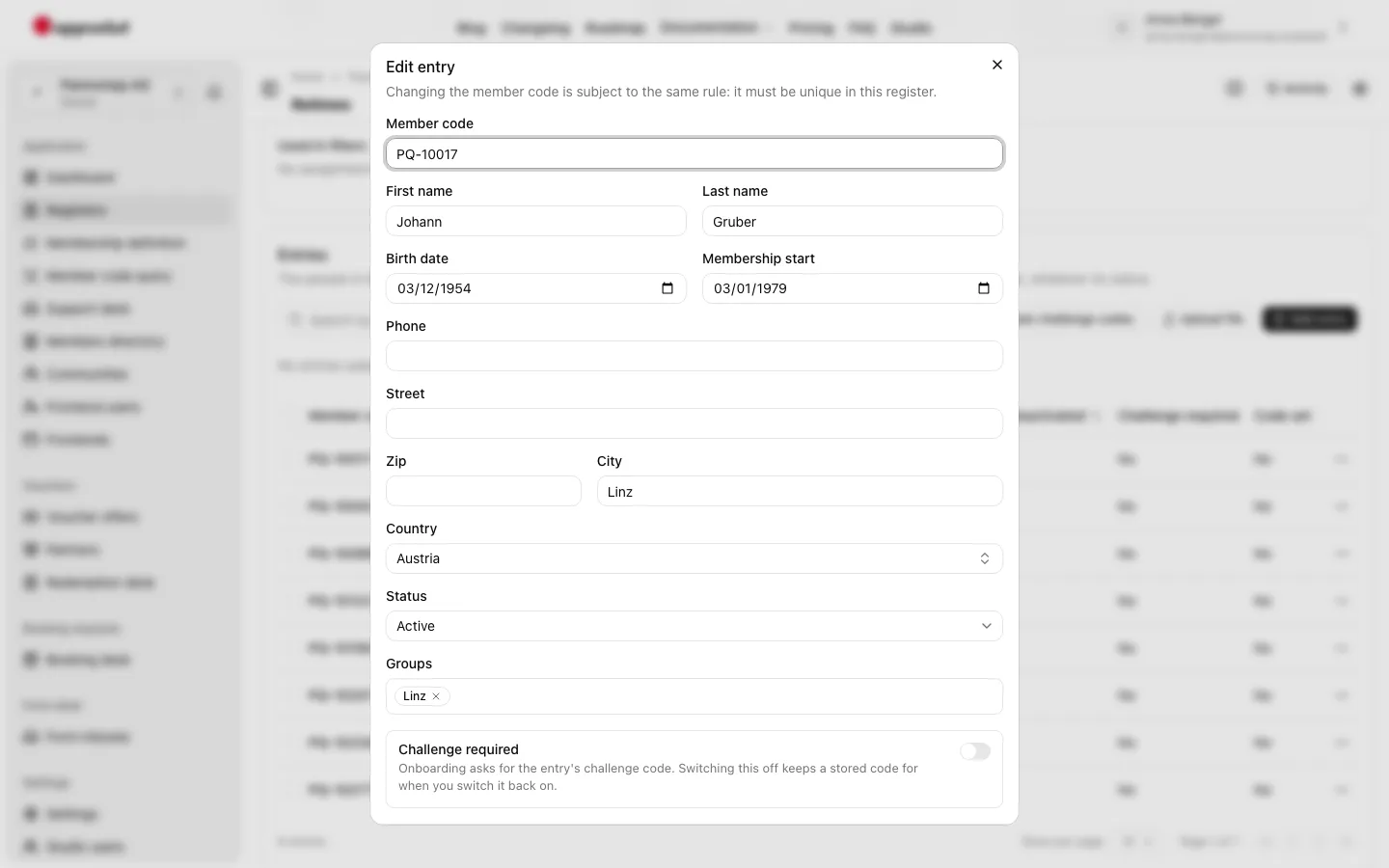
- Fill in what you know: "First name", "Last name", "Birth date", "Phone", "Street", "Zip", "City", "Country", "Status", "Groups" and "Membership start". For "Country", open the list and choose a country, or type part of its name or its two-letter code, such as AT, to find it; "No country" clears the field. For "Groups", type a group and press Enter. Under "Claims", fill in the claims the register declares, each as its type asks: text, a number, "Yes" or "No", or a date; leave a field empty for an entry without the claim.
- Leave "Challenge required" on if onboarding should ask for the entry's challenge code, or switch it off.
- Choose "Add entry".
Give the names and the birth date as the person will type them when they onboard: the membership check compares them where the entry holds them.
Edit an entry
- Choose the entry's member code, or open its actions menu and choose "Edit".
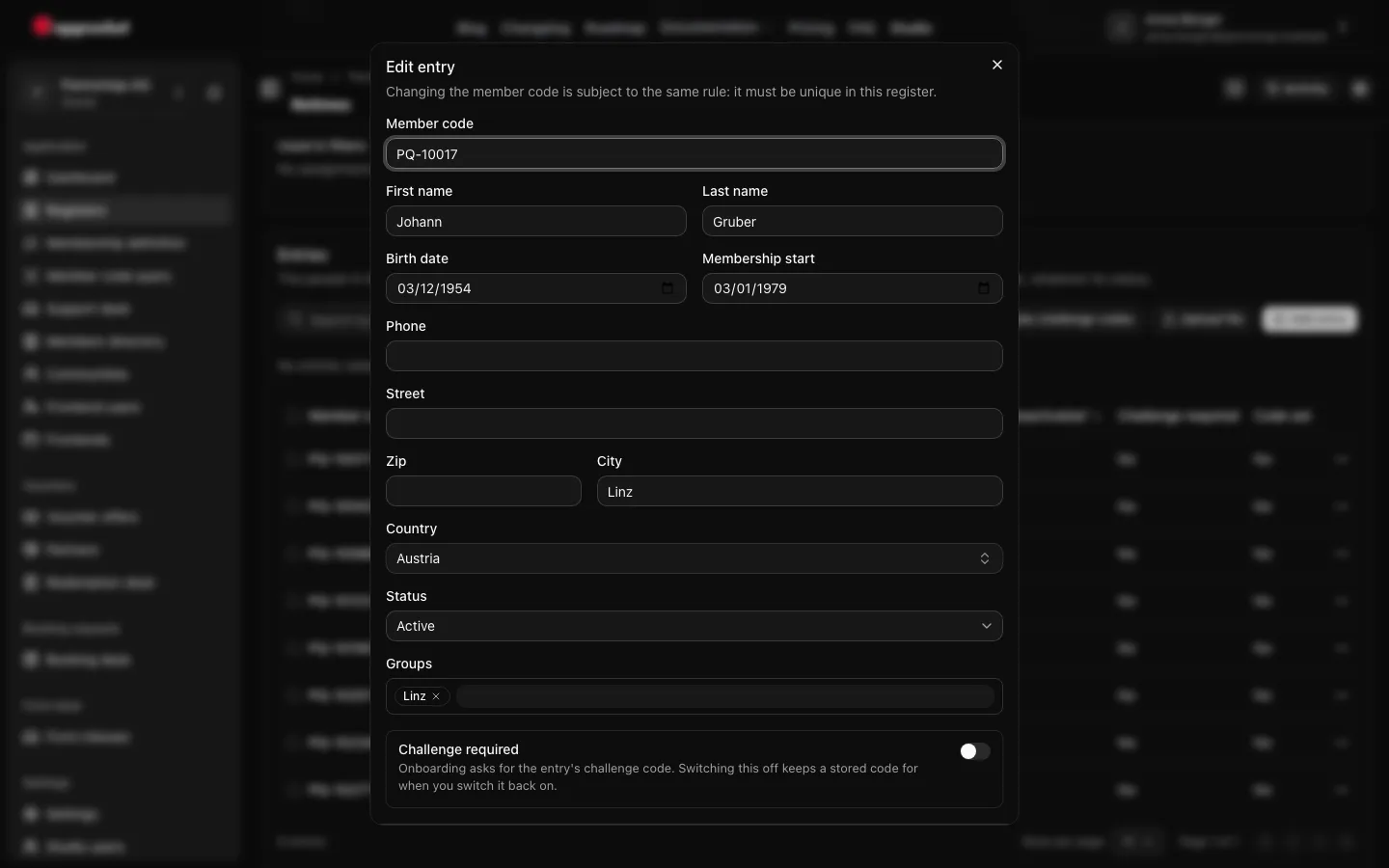
- Change what you need in "Edit entry". A changed member code must be unique in the register too.
- Choose "Save changes".
A member picks up the change at their next membership check, which runs at every sign-in.
"Country" offers the countries the Studio offers, by name in the language you use the Studio in. An entry whose country is no longer offered keeps it: the list shows it marked "deactivated", and you can save the entry as it is. Once you choose another country or clear the field, the old one cannot be chosen again.
Deactivate an entry
Entries are never deleted. When a person should no longer qualify through this register, deactivate their entry:
- In the entry's row, open its actions menu and choose "Deactivate".
- Confirm with "Deactivate".
"Entry PQ-20412 will count as not being in this register. Its status stays as it is, and you can reactivate it at any time." At the person's next membership check, the next register of the membership definition is asked; if none decides, the person is no longer a valid member.
To switch the entry back on, open its actions menu and choose "Reactivate".
Every addition, change, deactivation and reactivation appears in the register activity, with the values before and after.