Sign in
Sign in to the Studio, use your account menu, choose the language and theme, request access, and accept an invitation to an organisation or to the Studio.
Studio roles: every Studio user.
You sign in to the Studio with your email address and password. Your Studio account is yours alone: it is not a frontend user account, and signing in to a frontend such as the "Pannoniqa Portal" does not sign you in to the Studio.
On some Studio installations, sign-up is by invitation only: "Create an account" then shows the installation's sign-up notice, which may say whom to ask for access, instead of the form, and the sign-in page offers no sign-up. If you were invited, open the link in your invitation email, see Accept an invitation.
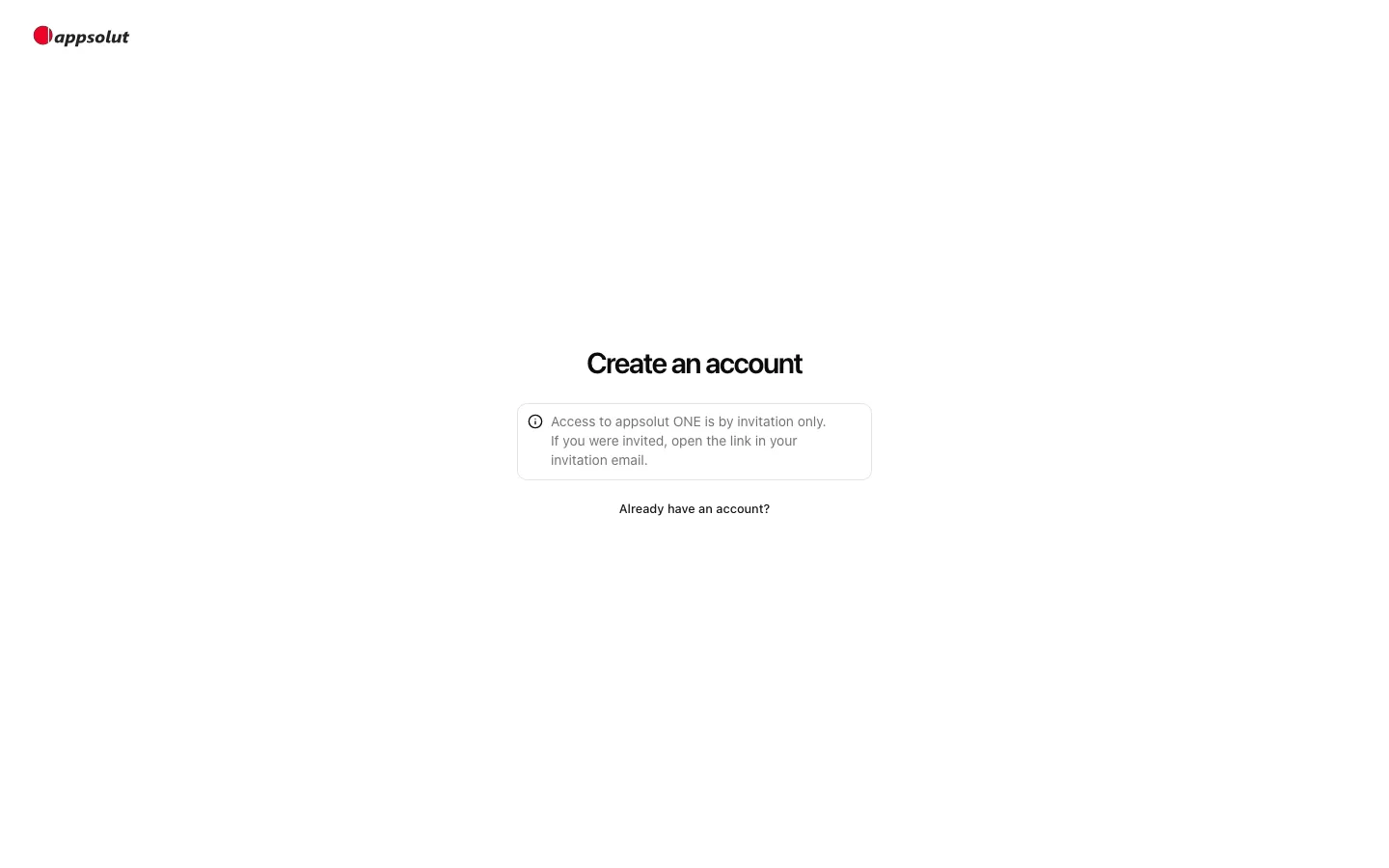
Where the installation takes access requests, the sign-in page offers "Request access" instead, and a form below the notice lets you ask for an account, see Request access.
Sign in
- Open the Studio and choose "Sign In".
- On "Sign in to appsolut ONE", enter your email address and password.
- Choose "Sign in with Email".
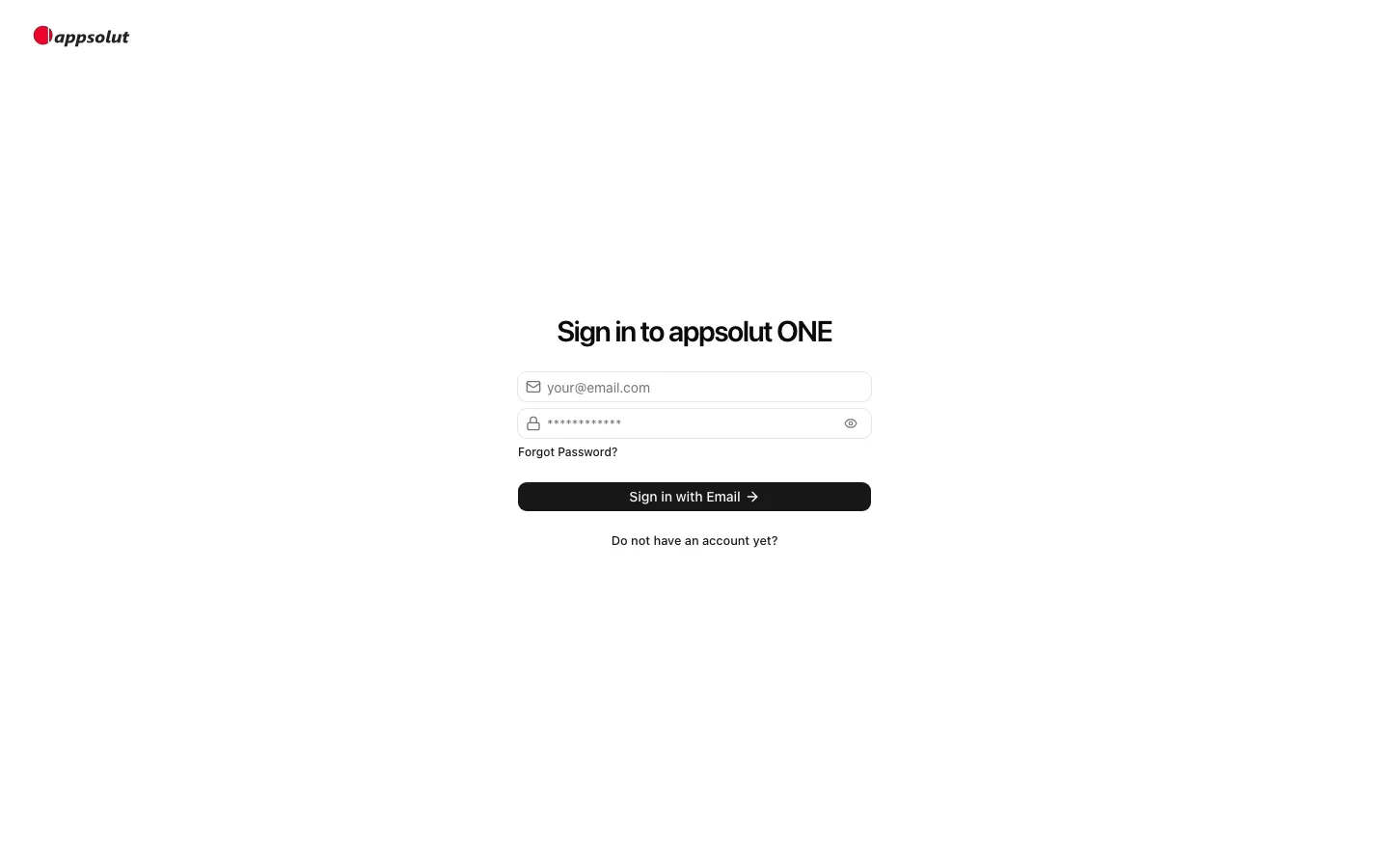
The Studio opens where you left off: on the page you last had open, in this browser, if you can still open it. Otherwise it opens the organisation you last selected, also when you sign in on another device or browser, and otherwise "Home". If you have left that organisation since, the Studio opens "Home" instead. Your first time, it opens "Home", from where you open an organisation, see Create and switch organisations.
While you are signed in, the menu at the top of this website ends with "Studio", which takes you back to the page of the Studio you last had open. On a phone or tablet, the menu opens with the menu button at the top left.
Signing out does not forget where you were: the next time you sign in in this browser, the Studio opens there again.
Your account menu
While you are signed in, the website's pages, such as the front page and the roadmap, and every page of the Studio show your picture or initial at the top right instead of "Sign In". On a wide screen your name and email address stand next to it. Choose it to open your account menu. It starts with "Signed in as" and your email address, and offers:
- "Home": opens your personal account in the Studio.
- "Settings": opens the settings of your personal account, such as your name, password and multi-factor authentication.
- "Language": shows the website in English or German. You stay on the same page.
- "Theme": "Light", "Dark", or "System" to follow your device.
- "Sign out": signs you out.
Language and theme
At the bottom of the website's pages, next to the copyright, you choose the language and the theme, whether you are signed in or not. On a phone they come first, above the copyright. A new language shows the same page in it.
Reset your password
- On "Sign in to appsolut ONE", choose "Forgot Password?".
- Enter your email address and choose "Reset Password".
- Open the link in the email to reset your password.
- Enter your new password twice and choose "Save new password".
The Studio saves your new password, signs you in and opens where you left off, as after signing in. The link works once, and only the latest one sent to you. If the page says "The email link has expired or has already been used.", request a new one. If the Studio does not accept the new password, for example because it is too weak, it signs you in and shows "Choose another password" above the password fields: enter another one there.
Other links the Studio emails you, to confirm your email address or an email change, open a page that asks for your email address before it continues. Some mail security services open the links in incoming emails and press the button they find. They leave the fields empty, so the link stays usable for you.
Multi-factor authentication
If you set up multi-factor authentication for your account, the Studio asks for a code after your password, on "Verify your account". Enter the 6-digit code from your authenticator app and choose "Submit Verification Code".
To set it up, open your account menu and choose "Settings". In the "Multi-Factor Authentication" section, choose "Setup a new Factor" and scan the QR code with your authenticator app.
Request access
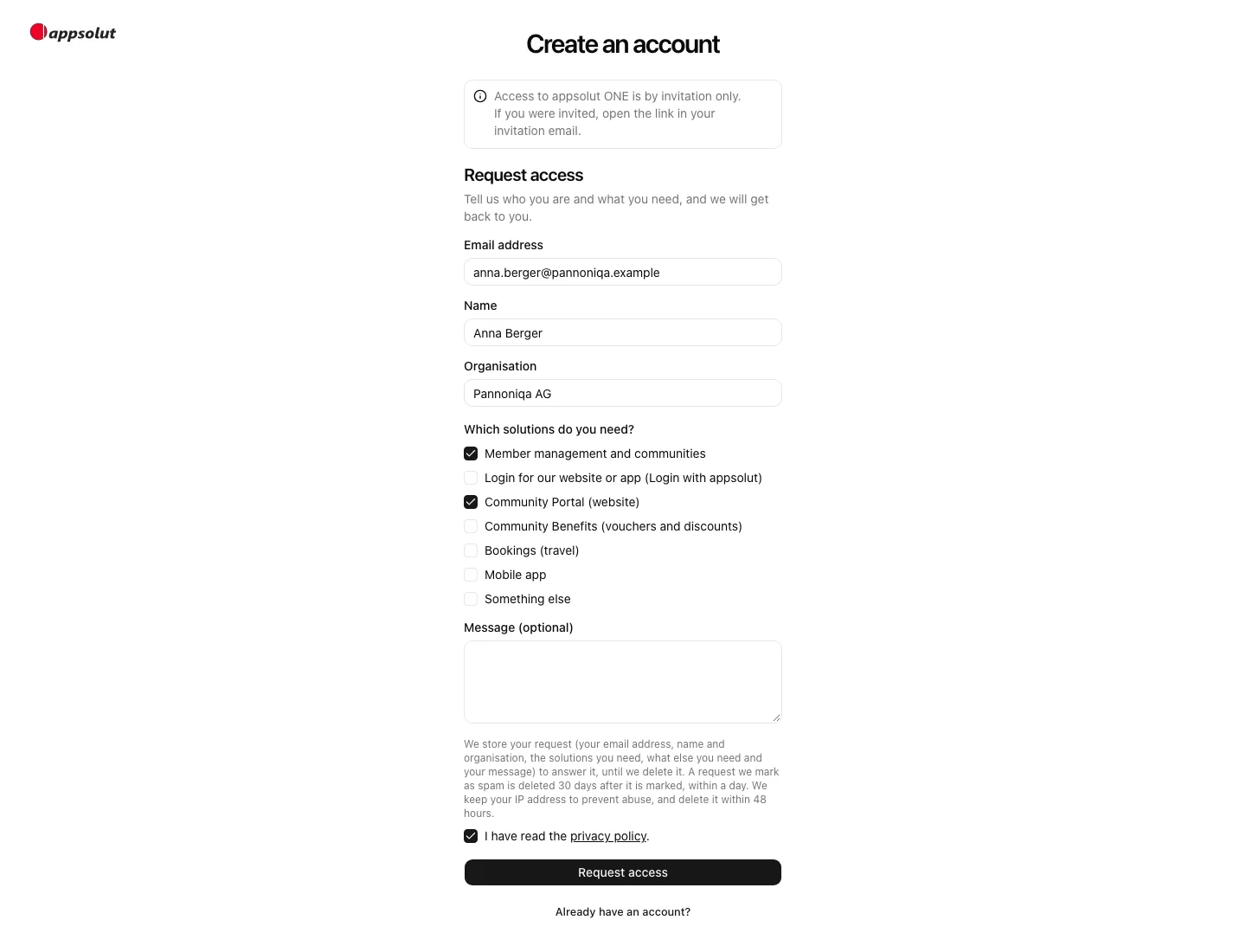
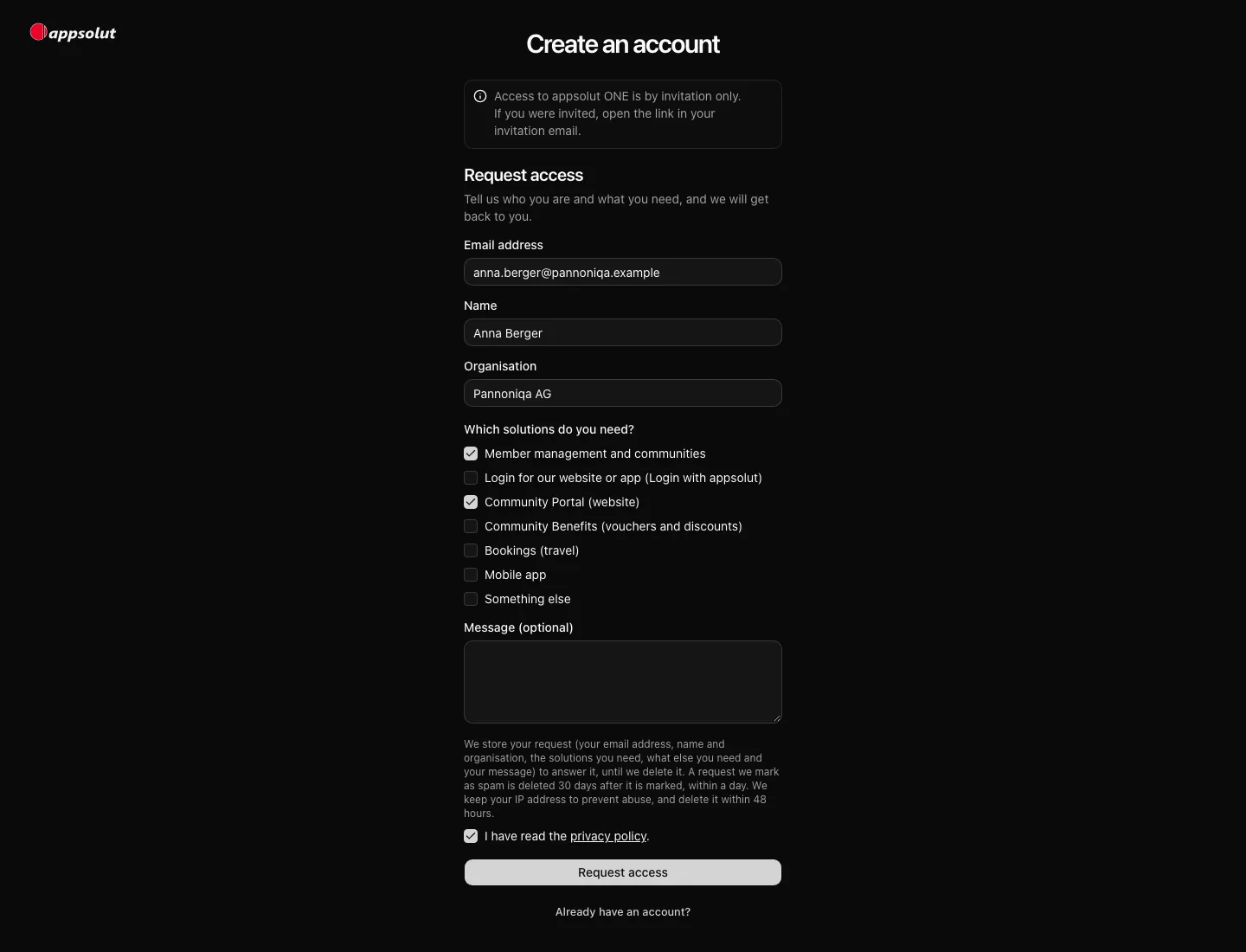
Where sign-up is by invitation and the installation takes access requests, you ask for a Studio account with a form.
- On "Sign in to appsolut ONE", choose "Request access".
- Under "Request access", enter your email address, name and organisation.
- If the form asks "Which solutions do you need?", tick at least one. With "Something else", describe it under "What else do you need?".
- Add a message if you like, tick "I have read the privacy policy." and choose "Request access".
The page then shows "Thank you for your request", and the first time, an email to you confirms it. You hear back by email, for example with an invitation into an organisation or an access invitation to the Studio. Your email address has one request: sending the form again changes that request instead of adding a second one. The form takes one request per email address every 24 hours; if you send it again sooner, the page still thanks you, but your request stays as it was. If the page says "Too many requests from your network.", try again later.
Accept an invitation
Studio users join an organisation by invitation. A Studio user of the organisation invites you by email with a Studio role, and the invitation lapses after 7 days.
- Open the link in the invitation email.
- On "Join Pannoniqa AG", choose "Accept Invitation". This signs you in with the email address the invitation was sent to, and creates your Studio account if you have none yet, also where sign-up is by invitation.
- Choose "Continue as" with your email address.
- With a new account, the Studio asks how you will sign in, on "Link account to sign in": choose "Email & Password", enter a password twice, choose "Update Password", then "Continue".
The organisation now appears in your organisations, with the Studio role you were invited with. If the page says "Invite not found or expired", ask whoever invited you to renew the invitation. If the invitation was sent in reply to your access request and is withdrawn before you set a password, the account it created is deleted again.
An access invitation to the Studio
If you asked for access to the Studio, you may get an access invitation to the Studio itself, without an organisation.
- Open the link in its email.
- On "Your invitation to Studio", choose "Accept invitation": this creates your account and signs you in.
- On "Link account to sign in", choose "Email & Password", enter a password twice, choose "Update Password", then "Continue".
The Studio opens your home page, where you create your organisation with "Create an Organisation", see Create and switch organisations. The invitation counts as accepted once your password is set; until then, the link in the email keeps working for 7 days. If the invitation is withdrawn before you set a password, the account it created is deleted again. If the page says "This invitation cannot be used", use the link in the latest email or ask for a new invitation.