Sign-in branding
Set how the sign-in screens of all your frontends look, and where support requests go.
Studio roles: "Owner", "Administrator" and "Frontend manager".
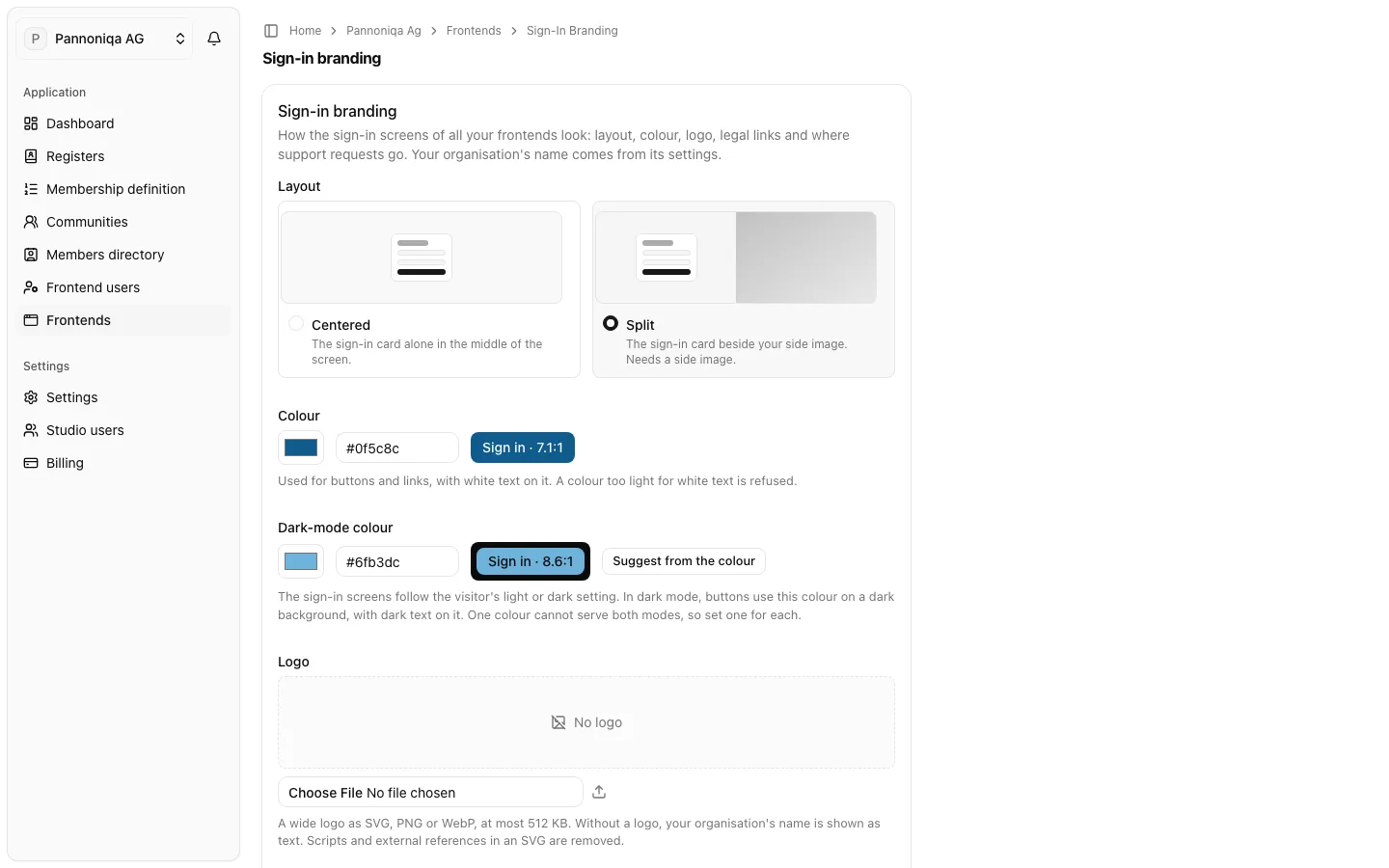
The sign-in branding is how your organisation's sign-in surface looks to frontend users: layout, colour, logo, legal links and the support address. You set it once for the organisation, and it applies to every frontend. A frontend cannot change it. The organisation's name on the screens comes from its settings.
Until you save a sign-in branding, the screens show your organisation's name in a plain look, and frontend users cannot send a support request, because there is no support address.
Set the sign-in branding
- Open "Frontends" and choose "Sign-in branding".
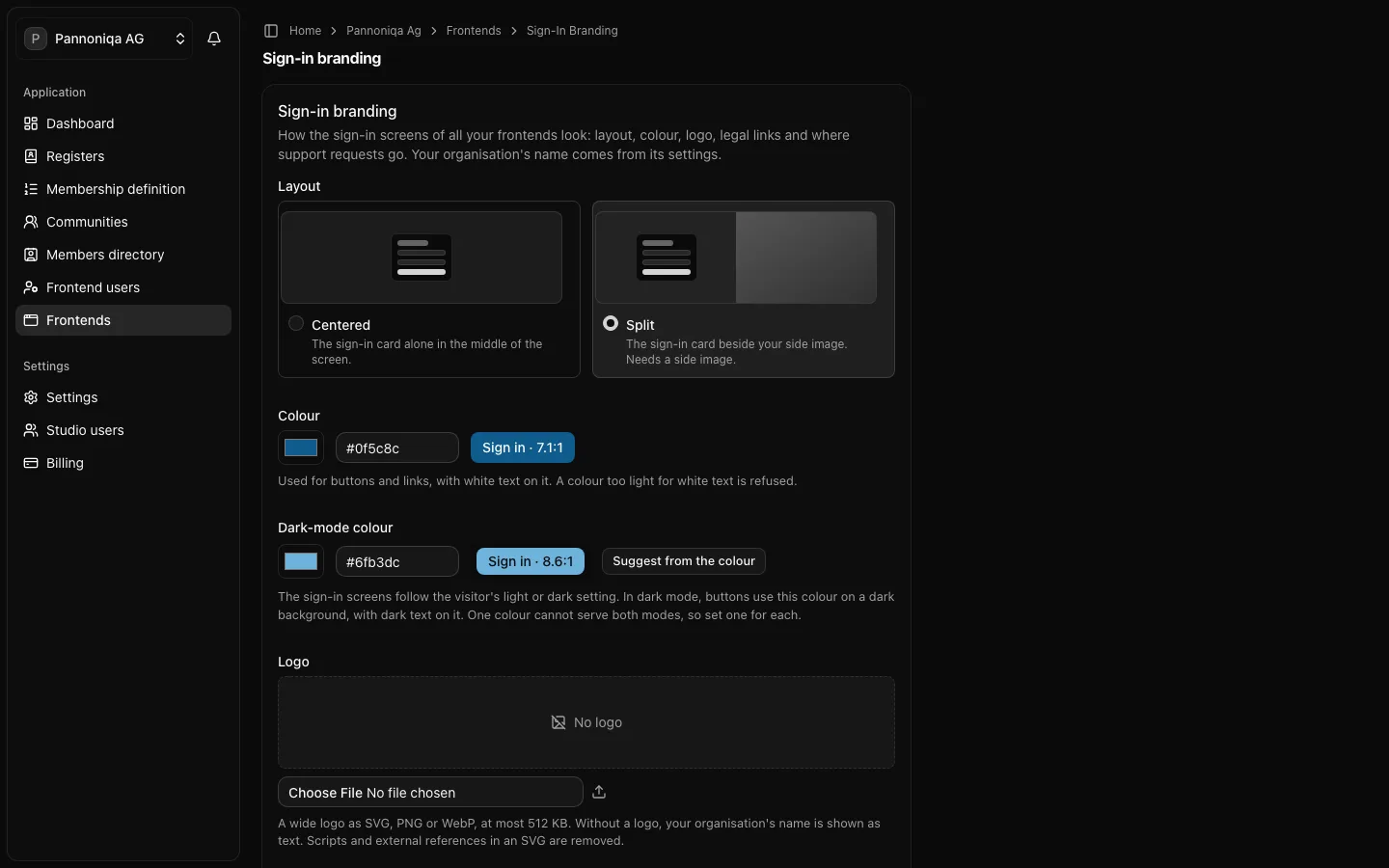
- Under "Layout", choose "Centered" (the sign-in card alone in the middle of the screen) or "Split" (the sign-in card beside your side image).
- Under "Colour", enter the colour for buttons and links as
#rrggbb, for example#0f5c8c. The text on it is white, so a colour too light for white text is refused. - Under "Dark-mode colour", enter the colour for dark mode, for example
#6fb3dc, or choose "Suggest from the colour". The sign-in screens follow the visitor's light or dark setting, and one colour cannot serve both. - Under "Logo", upload a wide logo as SVG, PNG or WebP, at most 512 KB. Without a logo, the organisation's name is shown as text.
- Optionally, under "Dark-mode logo", upload a logo for dark mode. Without it, dark mode shows your logo on a light plate.
- For the split layout, upload a "Side image" as JPG or WebP, at most 2 MB.
- Under "Support email", enter the address support requests are sent to, for example
support@pannoniqa.example. - Optionally, enter the links to your "Privacy policy" and "Imprint". They start with
https://and are shown below the sign-in card. - Choose "Save branding".
Good to know
- A colour is refused when its contrast is below 4.5:1, so the sign-in screens stay readable.
- Scripts and external references in an SVG logo are removed.
- The side image is kept when you switch to "Centered", so you can switch back.
- If someone else saved the branding while you were editing, the Studio says so. Reload the page to see their changes, then save again.
What frontend users see on the sign-in surface is described in Login with appsolut.