Create and change a register
Create an internal or external register, change its settings, and delete it.
Studio roles: "Owner", "Administrator" and "Community manager". Only an "Owner" can delete a register.
Create a register
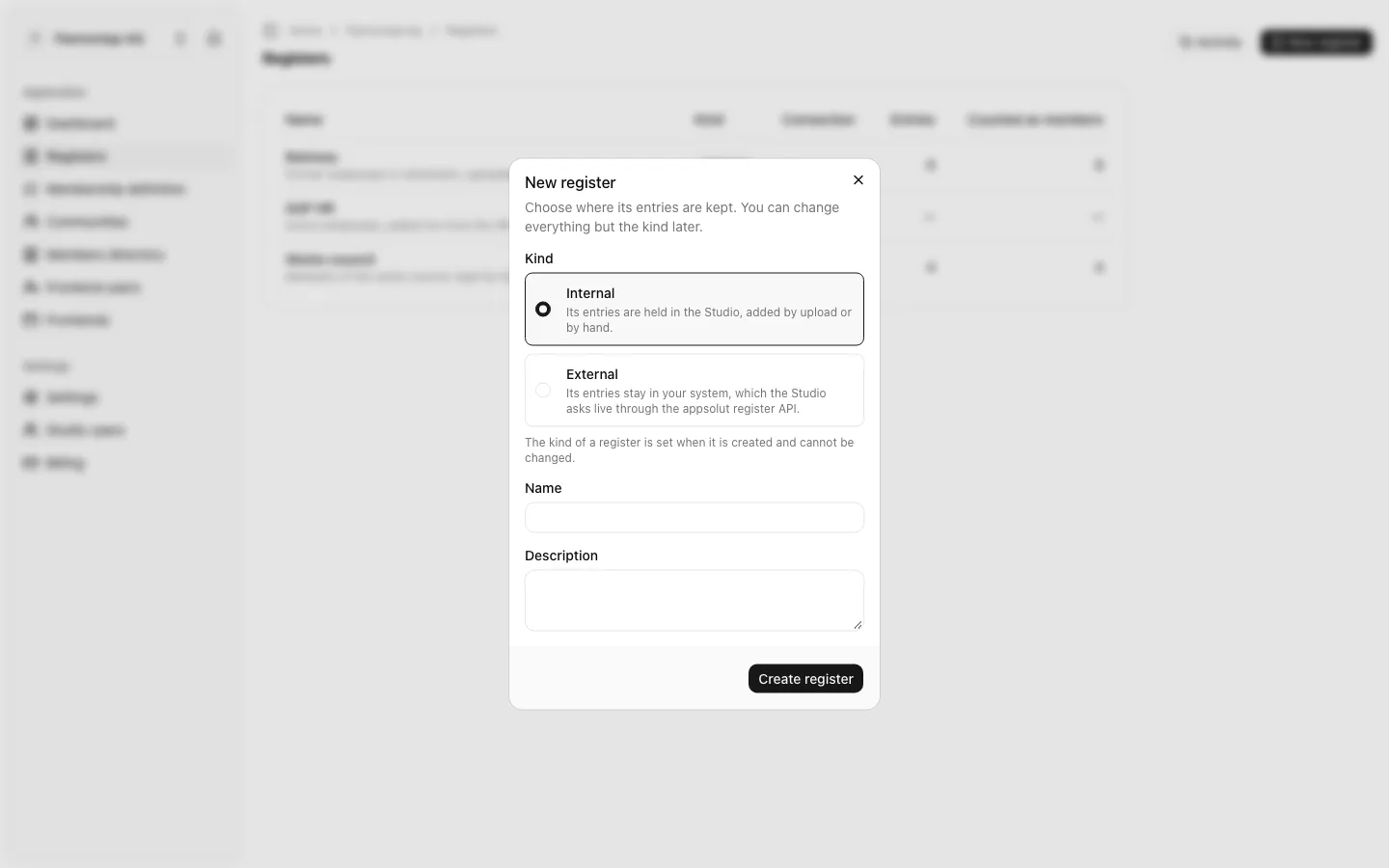
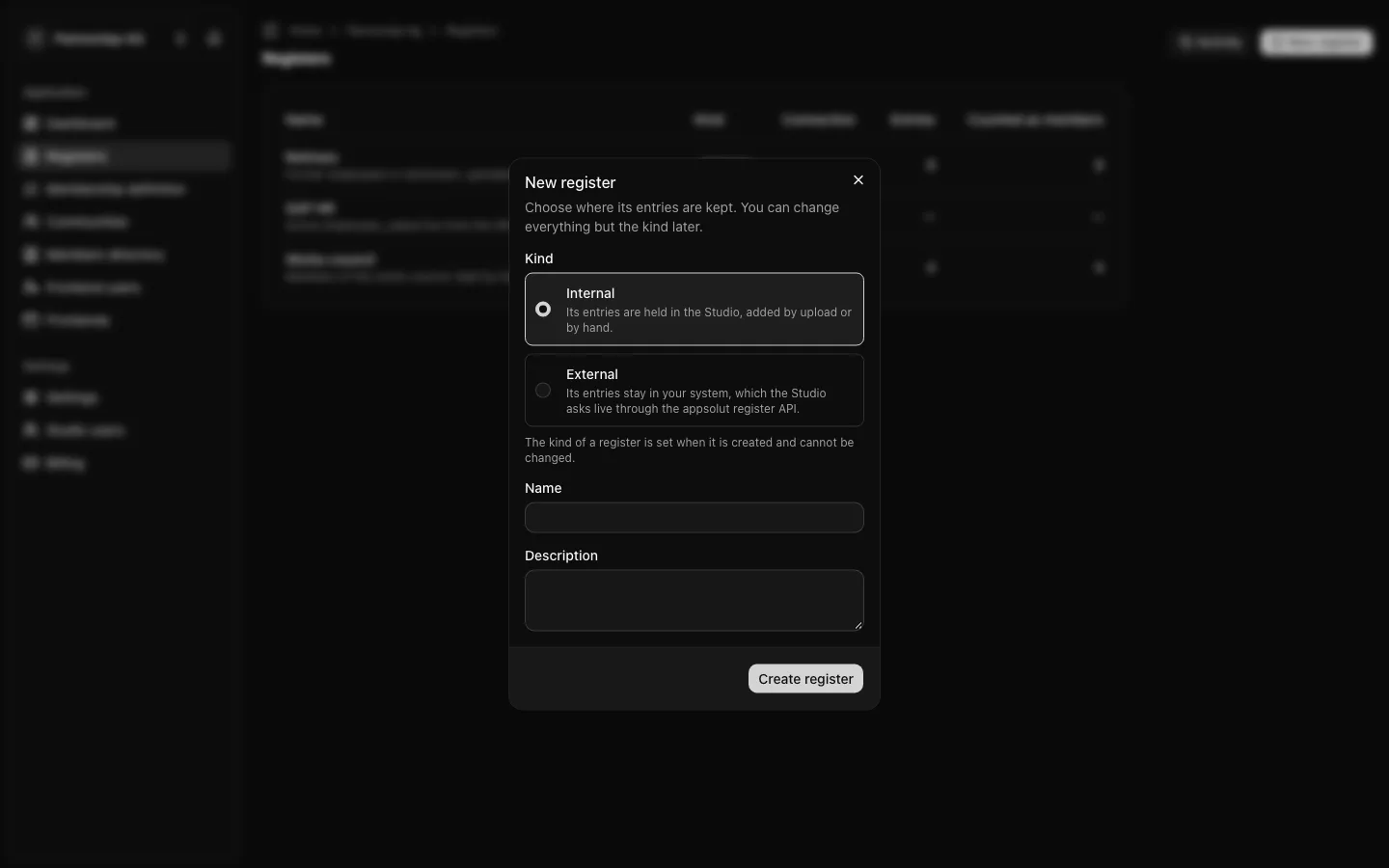
- Open "Registers" and choose "New register".
- Under "Kind", choose "Internal" or "External". You can change everything but the kind later.
- Enter the "Name", for example "Retirees", and, if you like, a "Description".
- For an external register, also fill in its connection: see Connect and test an external register.
- Choose "Create register".
Two registers cannot have the same name. "Names that differ only in case, accents or punctuation count as the same name."
A new register takes part in no check yet. Add it to the membership definition to let it decide who becomes a member. An internal register stays empty until you upload a file or add entries by hand.
Change a register's settings
Open the register from the "Registers" page. Under "Register settings" you can change:
- the "Name" and the "Description";
- the "Statuses that count as members": "An entry with any other status is treated as not being in this register." Choose at least one;
- for an external register, its "Groups": "Everyone found in this register carries these groups, which communities can filter on." See Groups.
Choose "Save changes". The "Kind" is shown but cannot be changed: "The kind of a register is set when it is created and cannot be changed."
A changed status mapping applies at each member's next membership check: a member whose status no longer counts is filtered out by this register when they next sign in, so it no longer decides them.
Delete a register
Deleting a register removes it with everything in it. Only an "Owner" sees the "Delete register" card on the register's page.
- Open the register and choose "Delete register".
- Read what will be deleted: an internal register's entries, or an external register's connection and API key. For an external register, "The people stay in your system."
- Type the register's name to confirm, exactly as shown.
- Choose "Delete register".
A register that is still in use is not deleted. The Studio answers "This register is still in use, so nothing was deleted." and names where it is used: "The membership definition" or a community. Remove it from the membership definition and from the community filters first, then delete it.
The register activity keeps a record of the deletion.