Filters and outcomes
Narrow which people a register decides, by status, groups, membership start and claims.
Studio roles: "Owner", "Administrator" and "Community manager".
A register assignment without filters decides about everyone found in its register: "No filters: everyone found here is decided by this register." Filters narrow that down. "All filters must pass. Someone who does not pass them is not decided here, and the next register is asked."
Add a filter
- Open "Membership definition".
- In the register assignment, choose "Edit filters".
- Choose "Add filter" and pick a condition.
- Fill in the condition. A condition left incomplete shows what is missing, and the definition cannot be saved until it is complete.
- Choose "Save and publish".
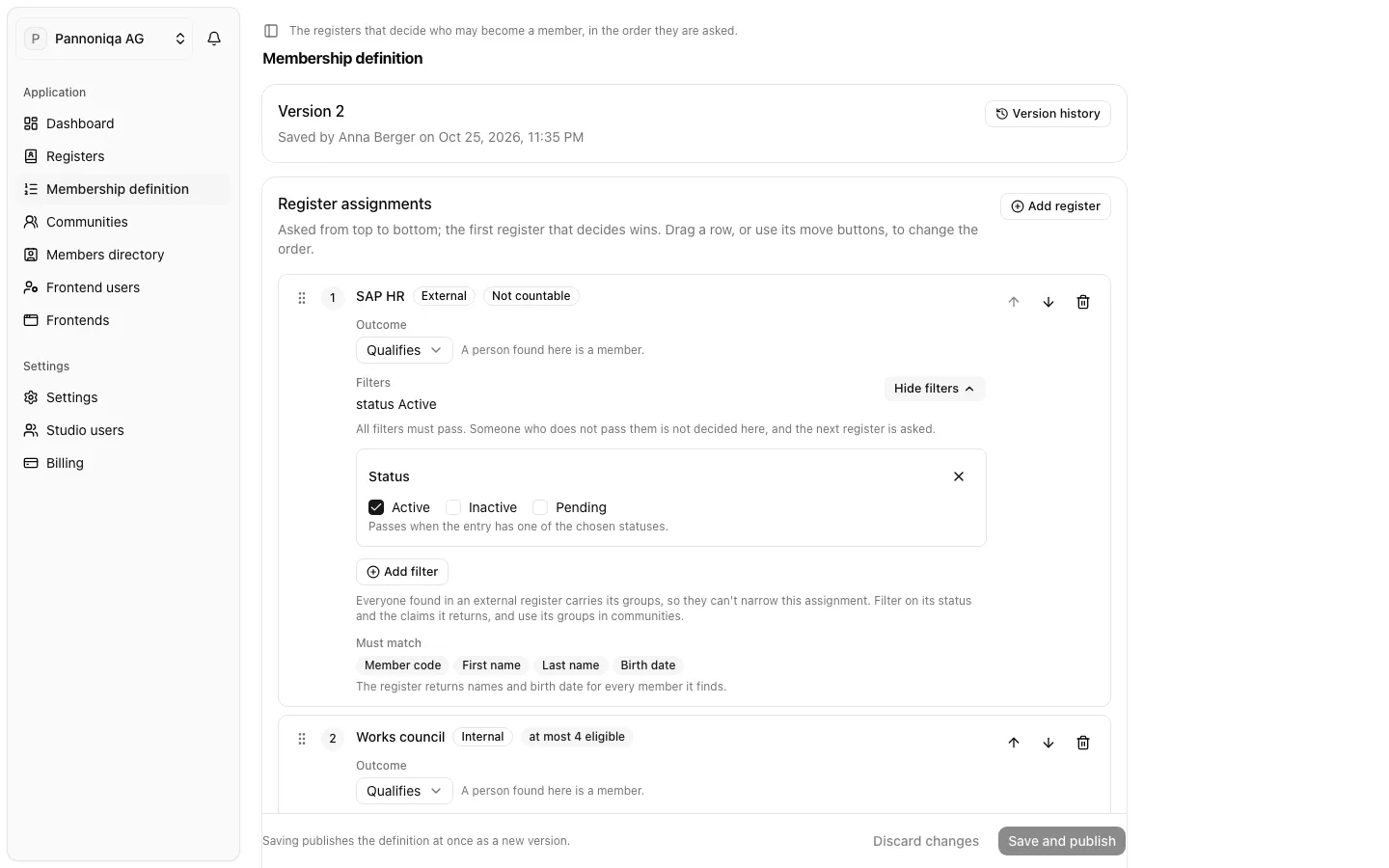
The summary under "Filters" sums the conditions up, for example "status Active". To remove a condition, choose the × of its card.
Conditions for an internal register
- "Status": "Passes when the entry has one of the chosen statuses."
- "Groups": "Passes when the entry is in any of these groups." Suggestions are the groups in this register; you can also type a new one.
- "Membership start": set "Started after", "Started before" or both. "The dates themselves do not pass."
- "Minimum length of membership": "At least this many months", "Measured from the membership start to the day of the check."
Pannoniqa AG could let only retirees with at least 120 months of service qualify, with a "Minimum length of membership" of 120 on "Retirees".
Conditions for an external register
- "Status": as for an internal register, with the status your system returns.
- "Claim": a fact your system returns about the person, such as an employee group or a leaving date. Choose or type the "Claim" key, say what its "Values are" ("Text", "Numbers" or "Yes or no"), and choose the "Condition": "is one of", "is none of", "is at least" or "is at most", with its value or values.
Groups cannot narrow an external register's assignment: "Everyone found in an external register carries its groups, so they can't narrow this assignment. Filter on its status and the claims it returns, and use its groups in communities."
When the filters use a claim, the editor warns: "Claims are stored at login". A member who has no value stored for the claim yet passes only after their next login.
Outcomes
The outcome says what happens when a person is found and passes the filters:
- "Qualifies": the person is a valid member.
- "Refuses": the person is refused, and no register below is asked.
A register that refuses with filters keeps out exactly the people who pass them. Together with the same register a second time below it, with the outcome "Qualifies", it can let in everyone else from that register.