Create a voucher offer
Set up a deal for your members: its partner, validity, voucher sources and redemption limit.
Studio roles: "Owner" and "Administrator", and Studio users with the permission set "Voucher manager". With "Voucher viewer" you see the voucher offers, with their static codes masked, without changing them.
Create a voucher offer
- Open "Voucher offers" in the sidebar, under "Vouchers", and choose "New voucher offer".
- Enter the "Name", for example "Spa day, 20 % off". It is for your organisation only: frontends show their own texts.
- Optionally write a "Description" for your offices.
- Under "Partner", choose the partner who honours the voucher, or "No partner".
- Optionally choose "Valid from" and "Valid until". The offer is valid from the start of the first day to the end of the last day, in your time zone. Leave both empty for an offer without a time limit.
- Under "Source for new customers", choose "Static code" and enter the "Static code for new customers": the code every member is given, up to 100 characters. Or choose "Voucher pool": each member then gets a unique code from the offer's voucher pool, which you create and fill on the offer's page.
- If existing customers of the partner get another code, switch on "Own code for existing customers" and choose their source the same way. Otherwise existing customers are given the source for new customers.
- Under "Redemption limit", choose how often one person may redeem the offer: "Once per person", "Per calendar month" or "Per calendar year" with a number from 1 to 1,000, or "Unlimited". For static codes, "Unlimited" is preselected, and "Once per person" where a source is a voucher pool.
- Choose "Create voucher offer".
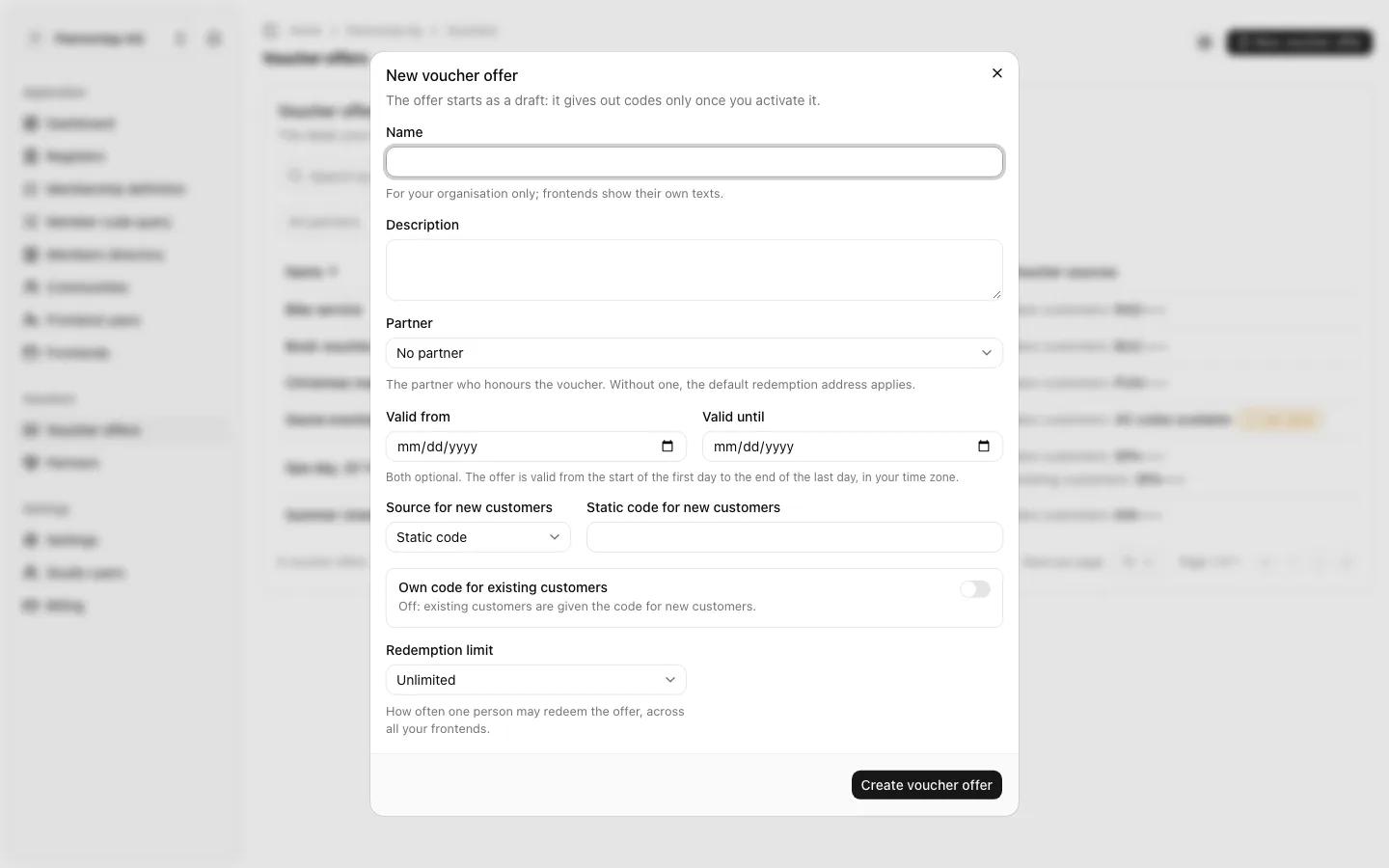
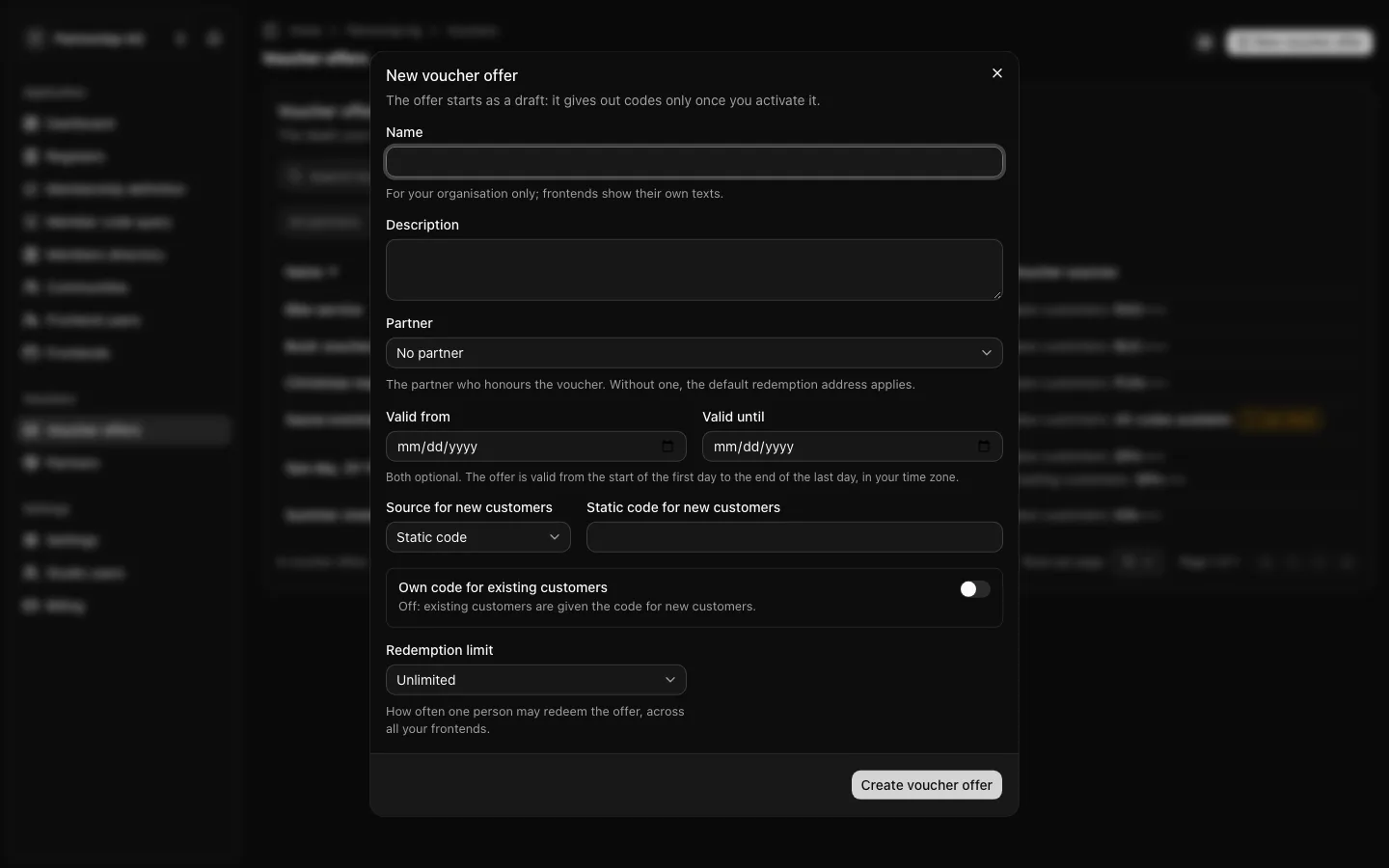
The offer's page opens. The offer starts as a "Draft": it gives out no codes until you activate it.
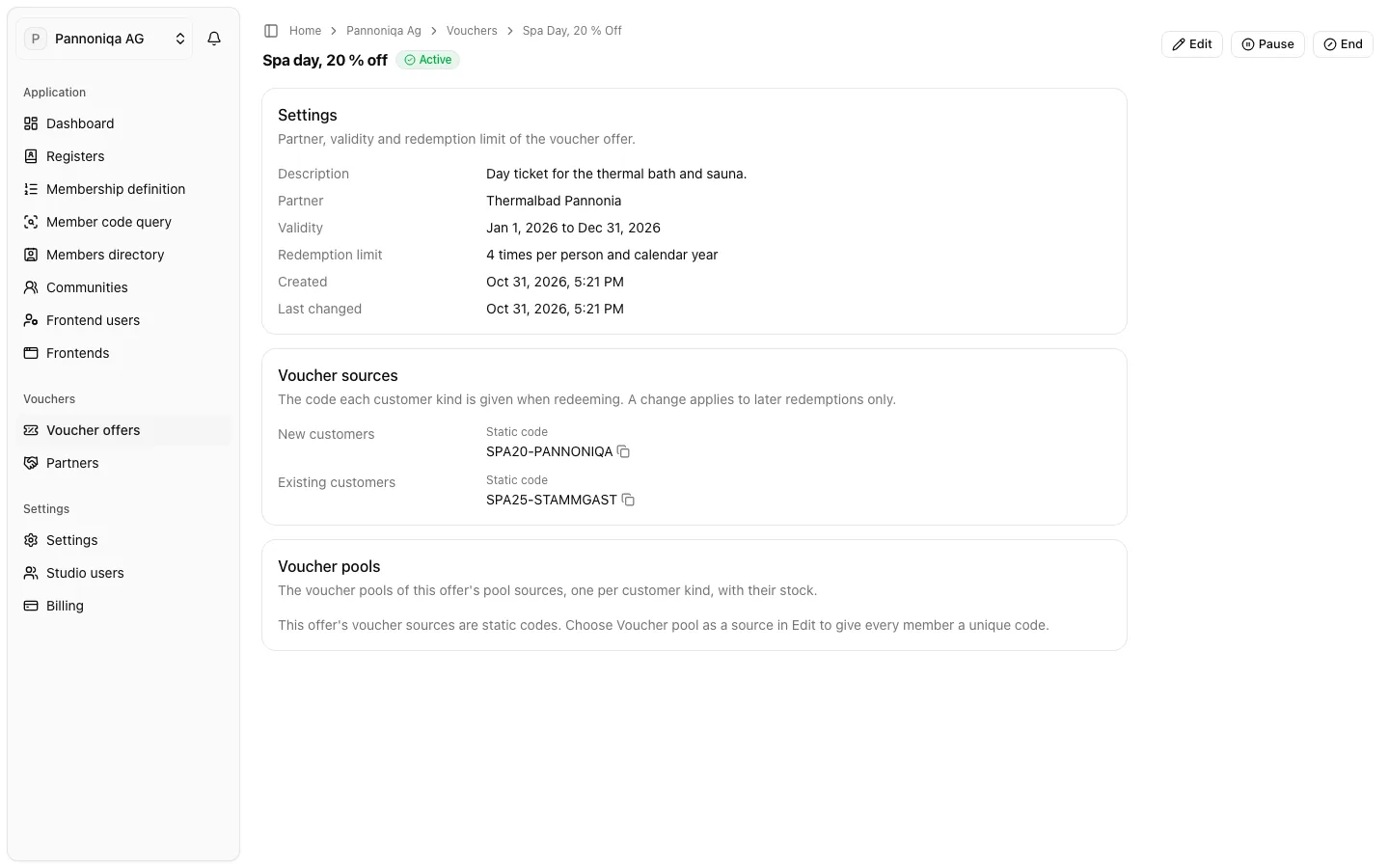
The offer's page
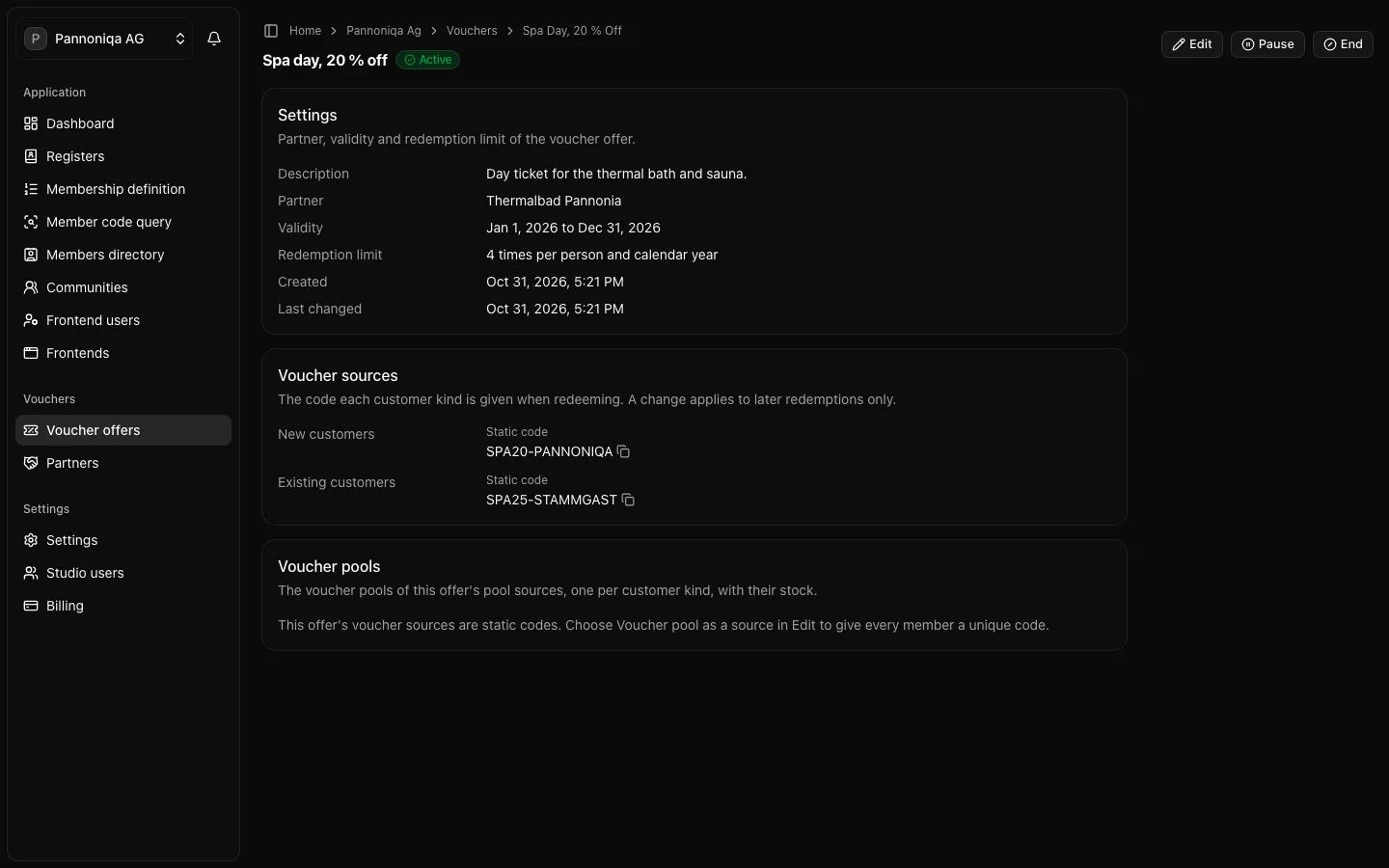
The page shows the offer's settings and, under "Voucher sources", the source for each customer kind. A Studio user with "Voucher manager" sees the static codes in full and can copy them; everywhere else, and for "Voucher viewer", they show masked. Under "Voucher pools", the offer's pools show with their stock; there you create the pool of a source that is a voucher pool.
Change a voucher offer
- Open the offer and choose "Edit".
- Change what you need and choose "Save changes".
A changed code applies to later redemptions only: members who redeemed before keep the code they were given. A source that is a voucher pool can change to a static code only once its pool has no available codes left. An ended offer cannot be changed. Every change is recorded with who made it and when.
Find a voucher offer
In "Voucher offers", search by name, or filter by "Partner" and "Status". Sort by "Name", "Valid from" or "Valid until" by choosing the column's heading.