Voucher pools
Give every member a unique code: create a voucher pool, import your partner's codes, watch the stock and withdraw codes.
Studio roles: "Owner" and "Administrator", and Studio users with the permission set "Voucher manager". With "Voucher viewer" you see the pools, their stock and their codes masked, without changing anything.
A voucher pool is a stock of unique codes your partner supplied, for one voucher offer and one customer kind. Each member who redeems the offer gets a code of their own, and no code is ever given out twice. A pool code is "Available", "Issued" (to exactly one redemption, for good) or "Withdrawn"; an available code past its valid-until counts as "Expired" and is never given out.
Create a voucher pool
- Create the voucher offer, or open it and choose "Edit", and choose "Voucher pool" as the "Source for new customers", and if needed as the "Source for existing customers".
- On the offer's page, under "Voucher pools", choose "Create voucher pool" next to the customer kind.
- Enter the "Name", for example the partner's delivery.
- Optionally choose "Valid until": the pool's codes are given out up to and including that day, Vienna time. A code's own valid-until in the imported file can end earlier.
- Enter the "Low-stock threshold". At that number of available codes, and again when the pool is empty, the benefits alert address gets an email. 50 is preselected.
- Choose "Create voucher pool". The pool's page opens.
Import codes
- On the pool's page, choose "Import codes".
- Choose a CSV or Excel file (.xlsx) with a column
codeand, optionally,valid_until(a date such as 2026-12-31 or 31.12.2026), or paste the codes one per line and choose "Read codes". Up to 50,000 codes at a time. In Excel, format a column of long numbers as text, or Excel rounds them. - Check the preview. It counts the "New" codes, the "Duplicates" (a code repeated in the file, already in this pool, or in another pool of your organisation) and the "Invalid" lines (no code, a code over 100 characters, a valid-until that is no date or has passed), each with its line number. Nothing is stored yet.
- Choose "Import … codes". A large file goes in parts, with its progress. When it is done, choose "Back to the pool".
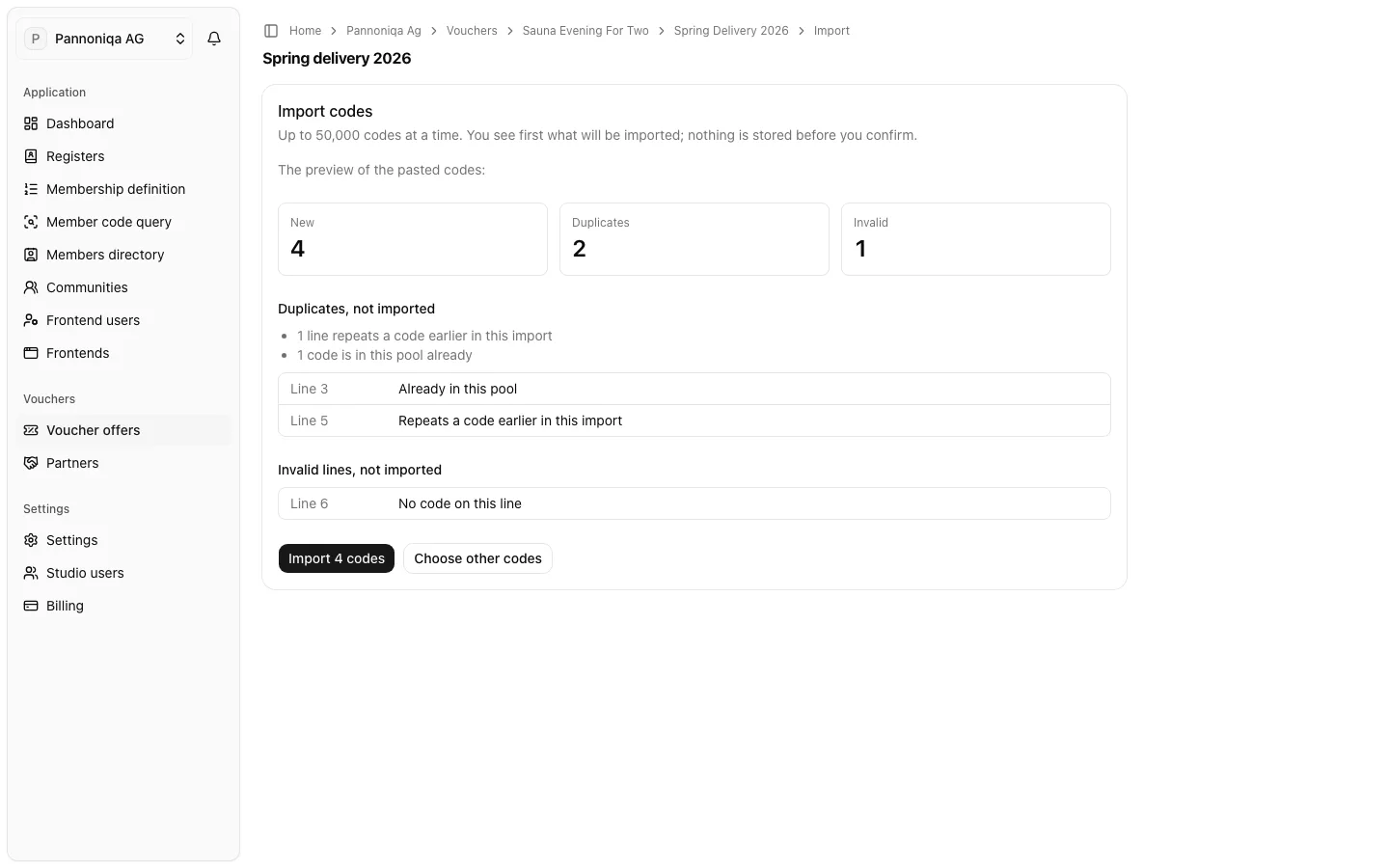
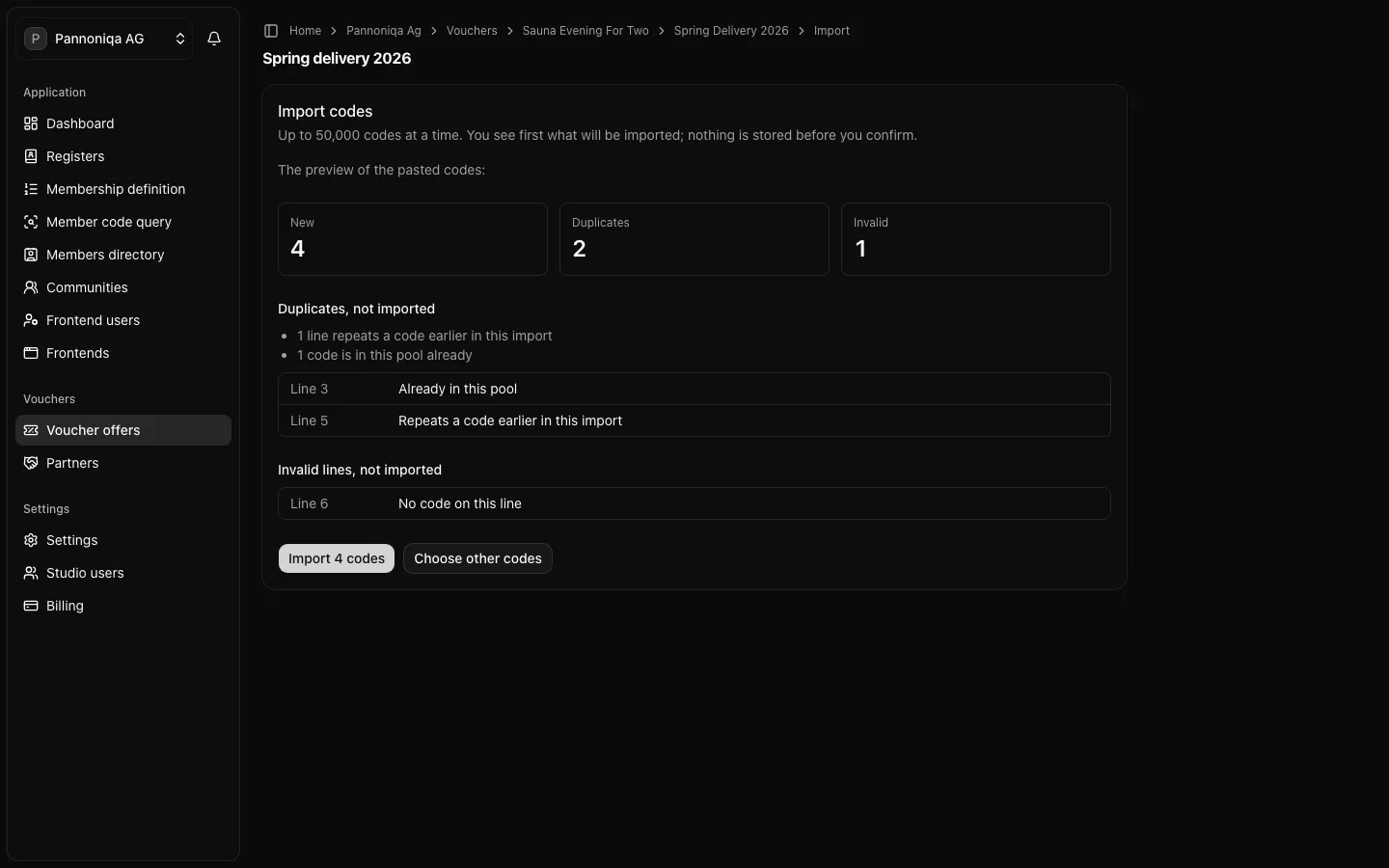
A code exists only once in your organisation: a duplicate is never imported, also not a code you withdrew. If an import stops, the parts before stay imported; choose "Try again" to go on.
The pool's page
The page shows the pool's stock: "Available", "Issued", "Withdrawn" and "Expired" codes, when the last code was issued, the pool's valid-until and its low-stock threshold. "Low stock" or "Empty" next to its name, on the offer's page and in the list of voucher offers warns that the pool needs codes.
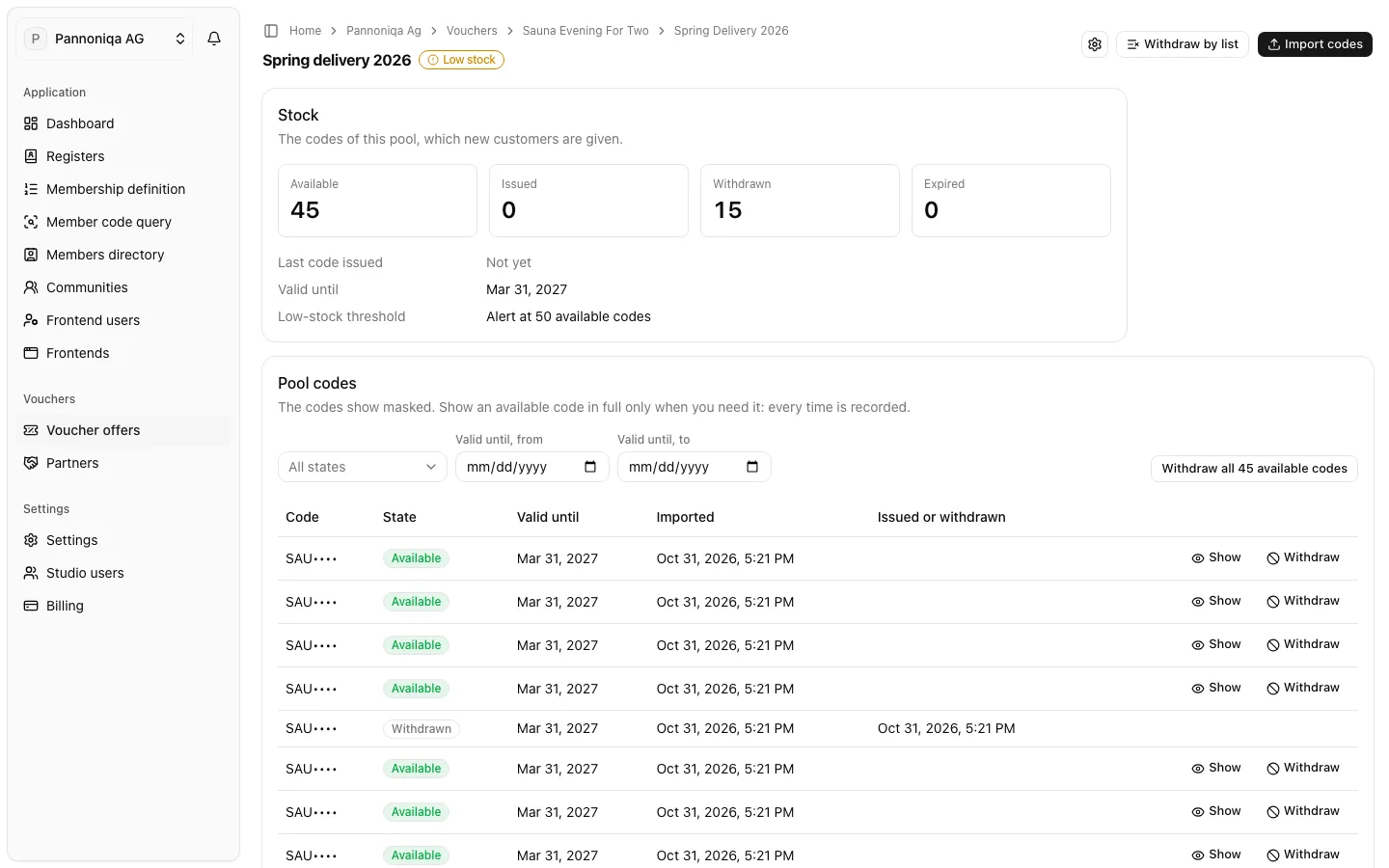
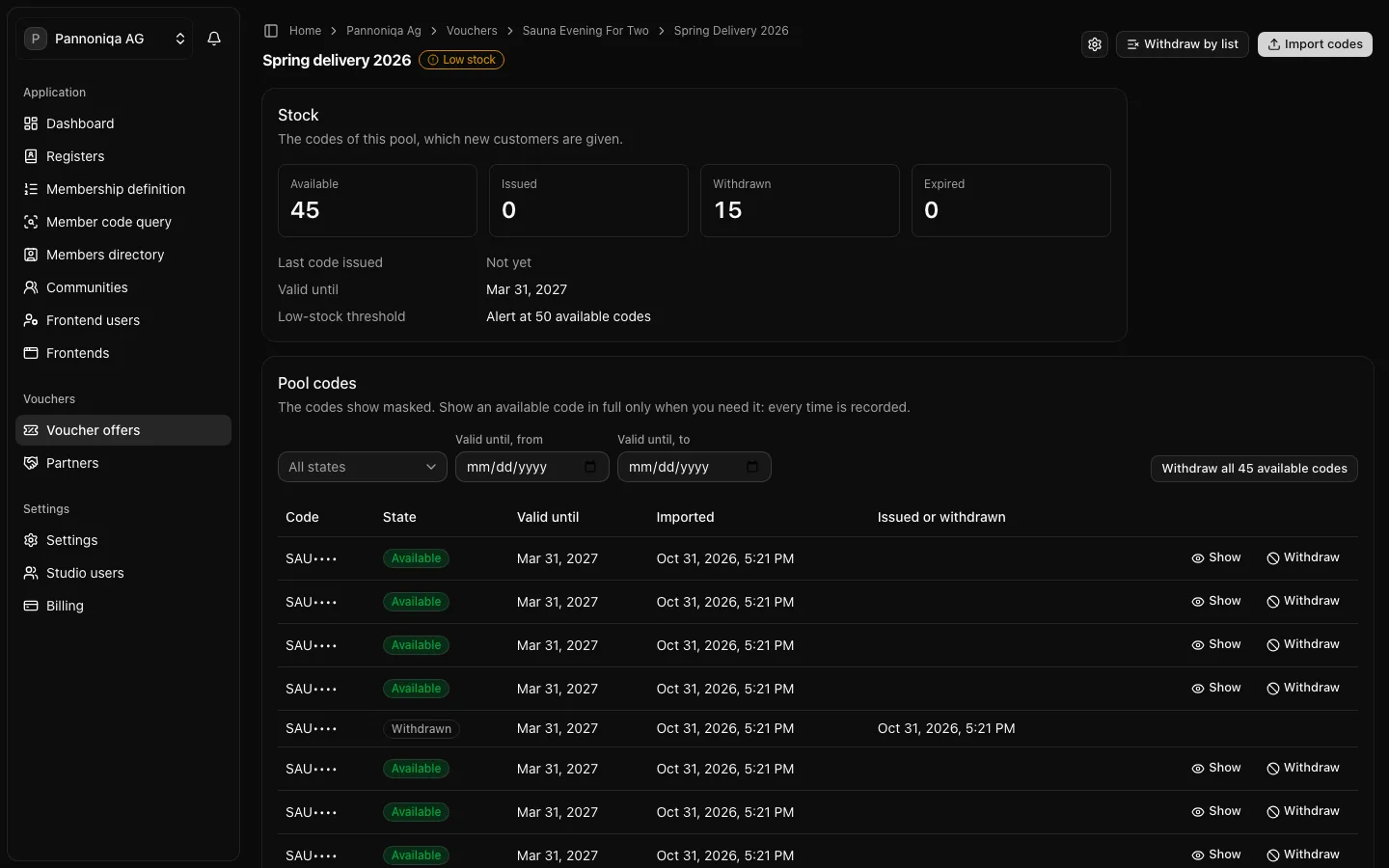
Below, "Pool codes" lists the codes masked, with their first three characters only. Filter them by "State" and by a range of their valid-until. "History" shows the pool's creation, its changes, each import with its file name and counts, and each withdrawal.
Show a code in full
Choose "Show" next to an available code. The code shows in a dialog, where you can copy it. Every time a code is shown is recorded. Issued codes are not shown here, and withdrawn codes never.
Withdraw codes
Withdraw available codes when a partner recalls them, for example a batch that leaked. Withdrawing is final: a withdrawn code is never given out, and the same code cannot be imported again. Issued codes always stay issued, also when a redemption is cancelled. Every way asks you to confirm first:
- One code: choose "Withdraw" next to it.
- By the filter: filter the codes, then choose the button above the table, such as "Withdraw 12 matching codes". The dialog says how many codes it withdraws; without a filter, that is every available code of the pool.
- By a list: choose "Withdraw by list", choose a file with a column
codeor paste the codes, and confirm. The result says how many were withdrawn, and how many were issued, withdrawn before or not in this pool.
Change a pool's settings
Choose the gear at the top of the pool's page, change the "Name", "Valid until" or "Low-stock threshold" and choose "Save changes". The pools of an ended voucher offer take no new codes and keep their settings.