Documentation/Studio
Back
  • Getting started
    • Key concepts
    • Sign in
    • Create and switch organisations
  • Registers
    • Create and change a register
    • Upload and download entries
    • Add, edit and deactivate entries
    • Groups
    • Claims
    • Challenge codes
    • Connect and test an external register
    • Register activity
  • Membership definition
    • Add and order register assignments
    • Filters and outcomes
    • Preview before saving
    • Save and version history
  • Member code query
  • Members directory
    • Find a member
    • Look up the checks of a member code
    • Deactivate a membership
  • Communities
    • Create, rename and delete a community
    • Filter by register, status, groups and claims
  • Frontends
    • Create a frontend
    • Frontend keys
    • Released claims
    • Sign-in settings
    • Guest access
    • Sign-in branding
  • Login with appsolut
    • Sign-up and onboarding
    • Sign-in and sign-out
    • Support requests
  • Frontend users
    • Find a frontend user
    • Membership and activations
    • Block a frontend user
    • Export a frontend user's data
    • Disconnect a frontend
  • Membership check
    • Check modes
    • Results and the check log
    • Rate limits
    • Grace rule
  • Vouchers
    • Partners
    • Create a voucher offer
    • Voucher pools
    • Activate, pause and end a voucher offer
    • Voucher settings
  • Redemptions
    • Handle a redemption
    • Redemption settings
  • Organisation settings
    • Organisation profile
    • Studio users and roles
    • Billing
    • Roadmap and feature requests

Handle a redemption

Find a redemption, see what the member was given and shown, set its status and keep a note.

Studio roles: "Owner" and "Administrator", and Studio users with a permission set that holds "Redemptions: manage". Anyone else gets a "page not found".

Find the redemption

  1. In the sidebar, choose "Vouchers", "Redemptions".
  2. Type the reference the member quotes, such as RD-2610-P3W8N, their name or their email into the search field and press Enter.
  3. To narrow the list, choose a voucher offer, a partner, a frontend or a status. "Clear filters" shows all redemptions again.

From a voucher offer's page, "All redemptions" opens the list with that offer already chosen.

Open it

Choose the reference to open the redemption's page:
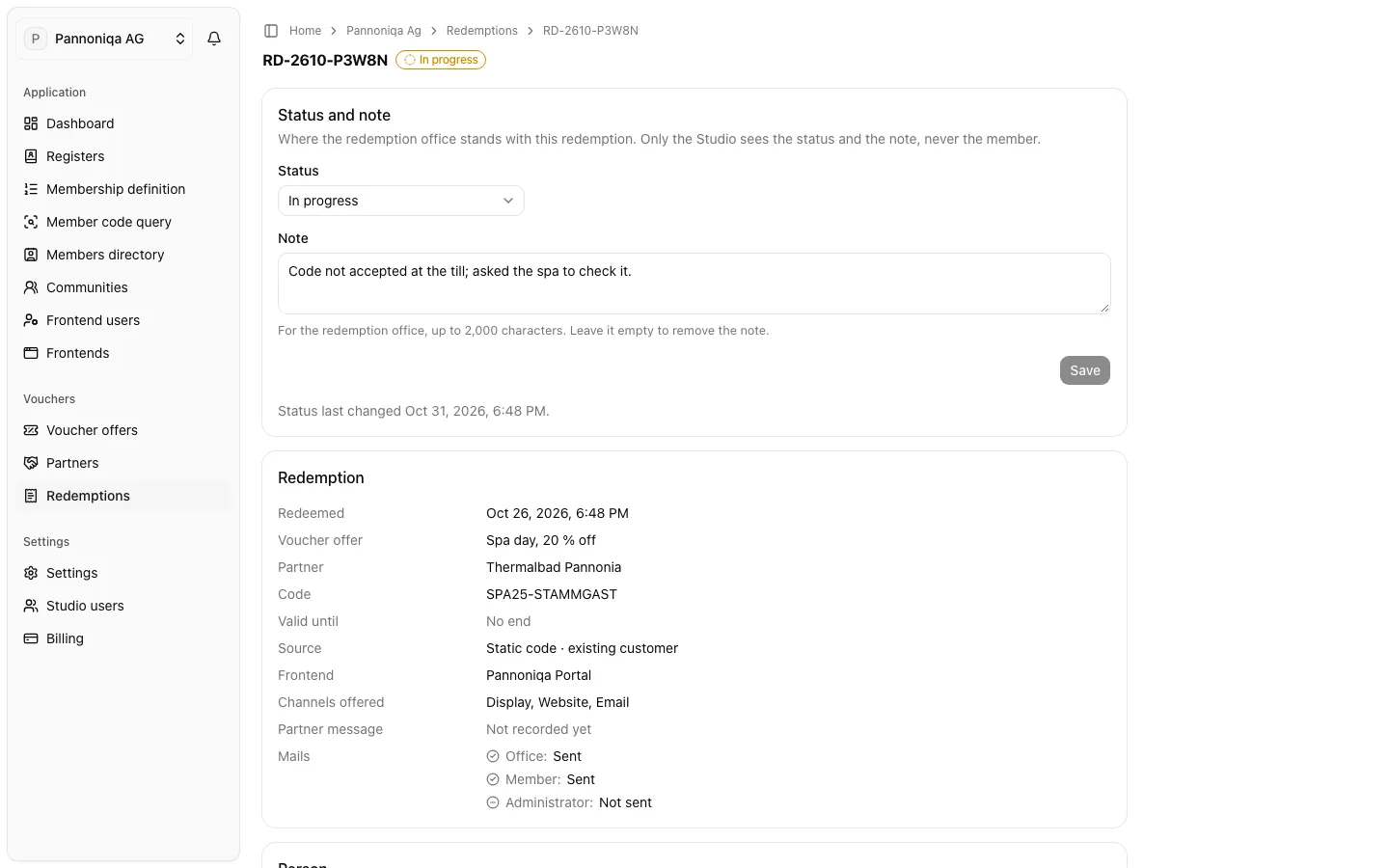
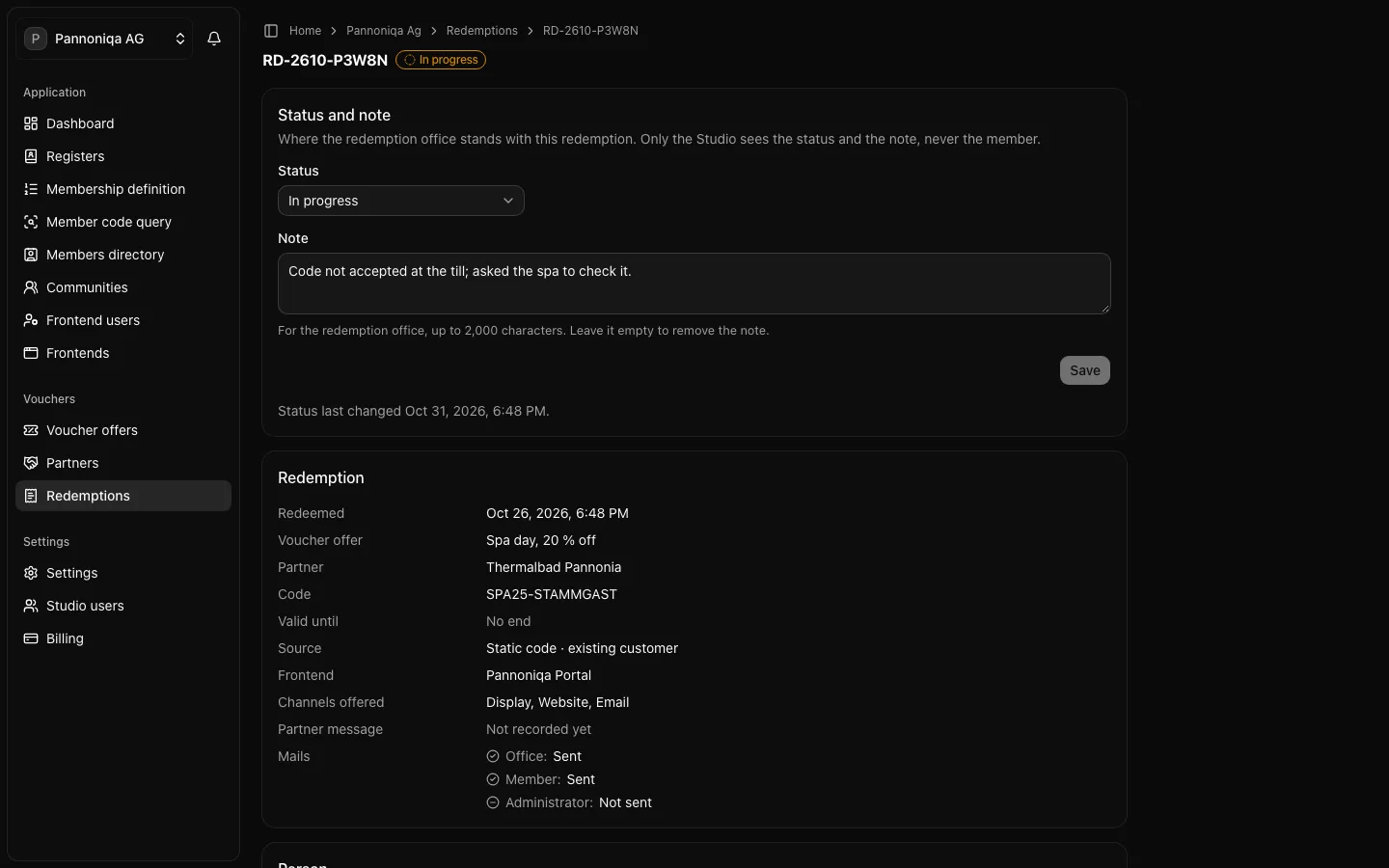
The page of redemption RD-2610-P3W8N of Pannoniqa AG, in progress with a note, with the code, the member and what they were shownThe page of redemption RD-2610-P3W8N of Pannoniqa AG, in progress with a note, with the code, the member and what they were shown
  • Redemption: when it was redeemed, the voucher offer, the partner as it was then, the code in full with its valid-until date, the source, the frontend, the channels the page offered, the partner message and the mails.
  • Person: the member's names and email. With "Community: read", "Open the member page" leads to their organisation membership.
  • What the member was shown: the offer as the frontend showed it at the redemption, the voucher, the website link, the content and the consents with their texts. It stays as it was, even if the content has changed since.
  • History: who changed the status or the note, and when, for the last 24 months.

Set the status and the note

  1. Under "Status and note", choose a status: "Open", "In progress", "Done" or "Cancelled".
  2. Write what the redemption office knows in "Note", up to 2,000 characters. Leave it empty to remove the note.
  3. Choose "Save".

The member never sees the status or the note. If someone else changed the redemption since you opened it, the Studio keeps their change and your entries, and shows what is stored now beside them: compare the two and choose "Save" again.