Dashboard
Your organisation's figures at a glance: what needs attention, members, checks, frontends, vouchers and Studio users, with their trends.
Studio roles: every Studio user. Each tile shows only with the permission its page needs, see Who sees which tile.
The "Dashboard" is the first page of an organisation. At the top, "Needs attention" lists what wants acting on. Below it, the tiles show counts from the areas you may open, each with a link to the page where you act on them. It never names a person: no names, email addresses or member codes.
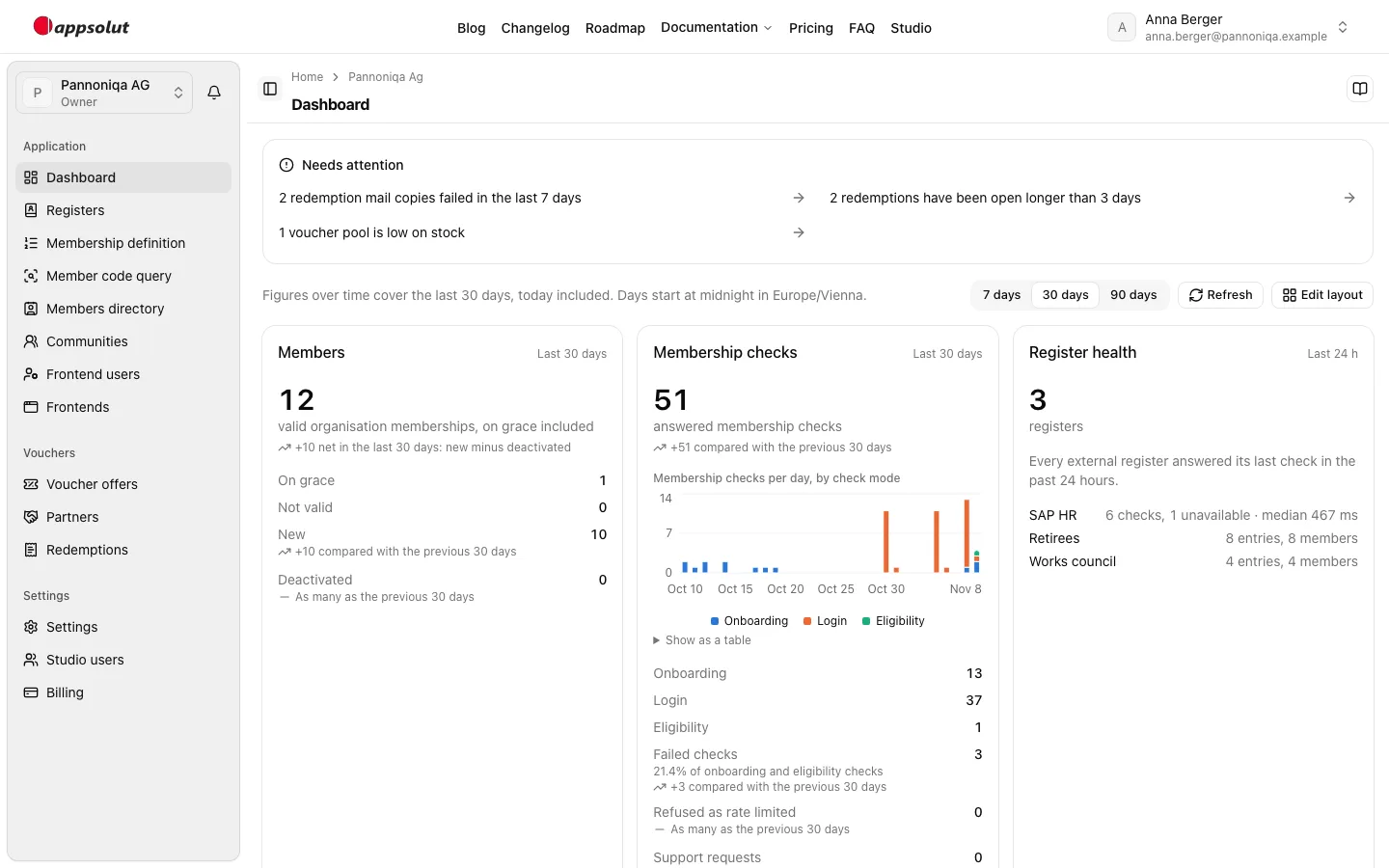
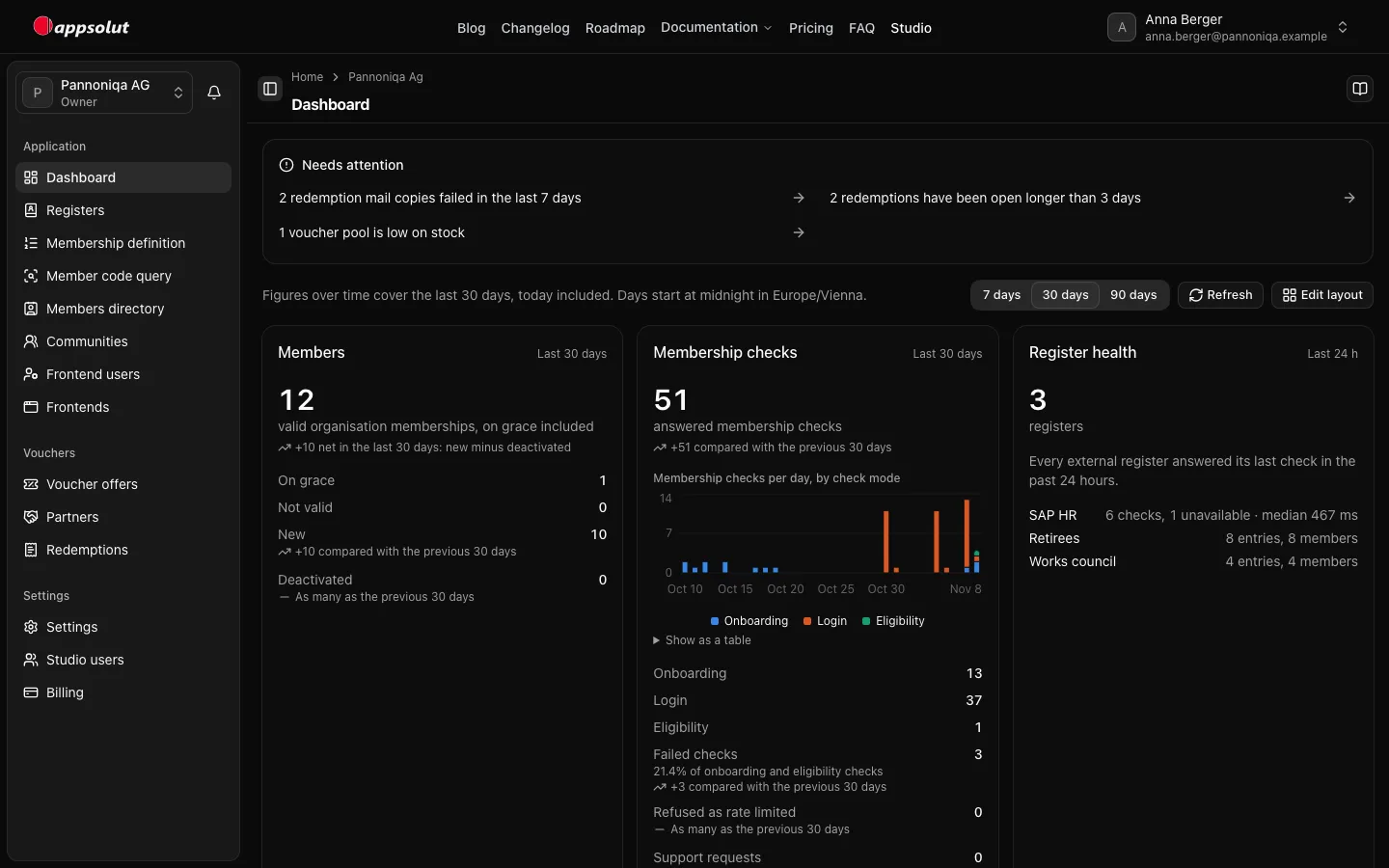
Needs attention
"Needs attention" sits above the tiles and lists, one line each, what wants acting on, with its count, such as "3 voucher pools are low on stock". Each line links to the page where you fix it. The lines come in this order:
| Line | Counts | Links to |
|---|---|---|
| External registers unavailable | External registers whose most recent check in the last 24 hours was unavailable | "Registers" |
| Failed mail copies | Redemption mail copies that failed in the last 7 days; a copy still pending after 10 minutes counts as failed | "Redemptions" |
| Redemptions open longer than 3 days | Redemptions with the status "Open" for more than 3 days; those in progress count in the "Redemptions" tile only | "Redemptions", showing the open ones, the oldest first |
| Voucher pools low on stock | Voucher pools at or below their low-stock threshold that an offer still gives codes from | "Voucher offers" |
| Voucher offers ending soon | Active voucher offers ending within 14 days | "Voucher offers", showing the active ones, the first to end first |
| Unused frontend keys | Frontend keys of a connected frontend, not revoked, unused for 90 days: counted from their last use, or from their creation if never used | "Frontends" |
| Studio invitations lapsing | Studio invitations lapsing within 2 days | "Studio users" |
| Permission sets ending | Permission sets ending within 7 days | "Studio users" |
A line shows only when its count is above 0, and only to whoever sees the tile its count comes from, see Who sees which tile: the redemption lines with "Redemptions", the voucher lines with "Vouchers", and so on. The counts are the tiles' own, so a line and its tile always agree. When nothing needs attention, the list is not shown. It does not follow the period, and it is not a tile: it always stays at the top.
Read a tile
Each tile has a big number, what it counts, and the figures below it. Its window is at the top right:
- "Last 30 days" (or 7 or 90): the tile follows the period you choose. These figures are counted over time, such as "Membership checks" or "Redemptions".
- "Now": the tile shows the state as it is, such as the active voucher offers or the Studio users.
- "Last 24 h": "Register health" always looks at the last 24 hours.
Below a figure counted over time, a line compares it: "+12 compared with the previous 30 days" means 12 more than in the 30 days before. "Members" shows its net change instead: "+3 net in the last 30 days: new minus deactivated" means that in those 30 days 3 more organisation memberships were created than deactivated. It counts what happened in the period, so it can differ from the number of members 30 days ago, for example when a membership's check result changed. A figure of the moment, such as "Not valid", has no such line.
The quick actions at the bottom of a tile, such as "Query a member code" or "Sign-in branding", show only when you may change that area.
Read a trend
Three tiles show their figures over time as a column chart: "Membership checks" per check mode (onboarding, login and eligibility, stacked), "Frontend users" its sign-ups, and "Redemptions" its redemptions. The caption names what a column holds:
- For 7 and 30 days, a column is a day, such as "Redemptions per day".
- For 90 days, a column is a week, such as "Redemptions per week", from the day the period starts. The last week can be shorter.
Point at a column to see its day ("Mon, 3 Nov") or week ("Week from 3 Nov") and its figures. "Show as a table" below the chart lists the same figures, one row per day or week.
Choose the period
- Above the tiles, choose "7 days", "30 days" or "90 days". The default is 30 days.
- The tiles that count over time follow it; the tiles of the moment stay as they are.
The address keeps the period (for example ?period=7), so a bookmark or a link opens the same view.
Days start at midnight in your time zone, which your browser tells the Studio. The line above the tiles names it, for example "Days start at midnight in Europe/Vienna."
Refresh the figures
The figures are counted when the page loads. They do not update by themselves.
- Choose "Refresh" above the tiles.
- Every tile counts again.
If a tile cannot be loaded, it says "Couldn't load these figures." and has its own "Refresh". The other tiles are not affected.
Arrange your tiles
You can hide tiles and change their order. The layout is yours alone and kept for each organisation: nobody else sees it or changes it, and it does not change what anyone else sees. "Needs attention" is not a tile: it always stays at the top and cannot be hidden or moved.
- Choose "Edit layout" above the tiles.
- In "Edit layout", turn a tile's switch off to hide it, or on to show it again. Choose the arrows "Move … up" and "Move … down" to change its place.
- Each change is saved at once, and the tiles below follow it. Choose "Done" when you are finished.
"Reset layout" brings back the order everyone starts with, with every tile shown.
The layout never shows a tile you may not see: a tile whose permission you lose disappears, wherever you put it. A tile you gain later goes after the others, shown. This also holds for a tile you had placed or hidden before you lost its permission: once you change the layout without it, the layout keeps only the tiles you see then, so it comes back shown, at the end. When you leave the organisation, your layout of it is deleted.
If you hid every tile, the Dashboard says "You hid every tile". Choose "Show tiles" to open "Edit layout" again.
The tiles
| Tile | Big number | Window | Links to |
|---|---|---|---|
| "Members" | Valid organisation memberships, on grace included | the period | "Members directory" |
| "Membership checks" | Answered membership checks, with the failed checks and support requests | the period | "Check lookup" |
| "Register health" | The registers; for an external register its checks, how many were unavailable and the median answer time | "Last 24 h" | "Registers" |
| "Frontend users" | All frontend users, with sign-ups and successful sign-ins | the period | "Frontend users" |
| "Frontends" | Connected frontends, those without sign-in settings, frontend keys unused for 90 days, and the frontend users signed in per frontend | "Now" | "Frontends" |
| "Vouchers" | Active voucher offers, those ending within 14 days, voucher pools low on stock and sold-out offers | "Now" | "Voucher offers" |
| "Redemptions" | Redemptions, the open and in-progress ones, those open longer than 3 days, failed mail copies and the most redeemed voucher offers | the period | "Redemptions" |
| "Studio users" | Studio users by Studio role, pending invitations and permission sets ending within 7 days | "Now" | "Studio users" |
When an area has nothing set up yet, its tile says so instead of showing zeros, for example "No register yet." If you may set it up, the tile has a link to do so, such as "Create a register".
Who sees which tile
A tile shows only to a Studio user who may open the page it links to, see Permissions. You see the same numbers as someone who manages the area; only the quick actions need the manage permission.
| Tile | Needs |
|---|---|
| "Members", "Membership checks", "Register health" | community.read |
| "Frontend users" | frontend-users.read |
| "Frontends" | frontends.read |
| "Vouchers" | vouchers.read |
| "Redemptions" | redemptions.manage |
| "Studio users" | members.manage, or the "Manager" role |
A "Manager" without members.manage sees the "Studio users" tile for the units they lead only, as "Studio users in the units you lead". A manager who leads no unit does not see it.
If no tile is open to you, the Dashboard says "No figures for you yet" and whom to ask: an owner or administrator of the organisation can assign you a permission set, see Permission sets.