Sign-in texts
Word the sign-in screens of all your frontends and their emails yourself, in German and in English.
Studio roles: "Owner" and "Administrator", and Studio users with a permission set that holds "Frontends: manage". Studio users with "Frontends: read" see the texts but cannot change them.
The sign-in texts are your organisation's own wording on its sign-in surface and in the emails it sends. Your members may know their member code as "Personnel number", their challenge code may come on a card rather than a letter, or your membership may need a word of explanation. You set the texts once for the organisation, in German and in English, and they apply to every frontend. They are separate from the sign-in branding, which decides how the screens look.
A text you leave empty shows the standard text in that language. A text you write for one language never shows in the other: the English screens keep their standard text until you write an English one.
Write the sign-in texts
- Open "Frontends" and choose "Sign-in texts", or choose the "Sign-in texts" tab beside "Sign-in branding".
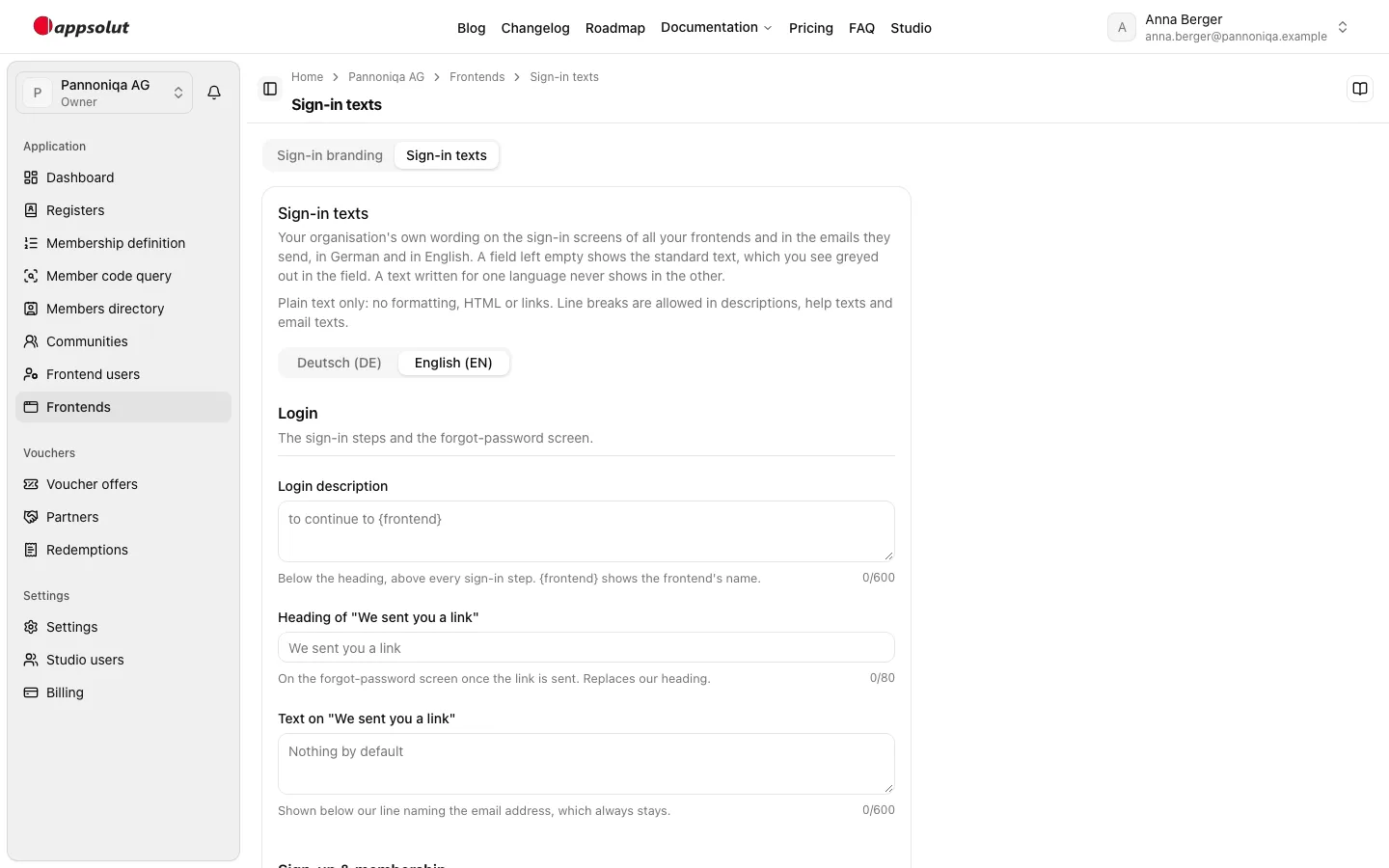
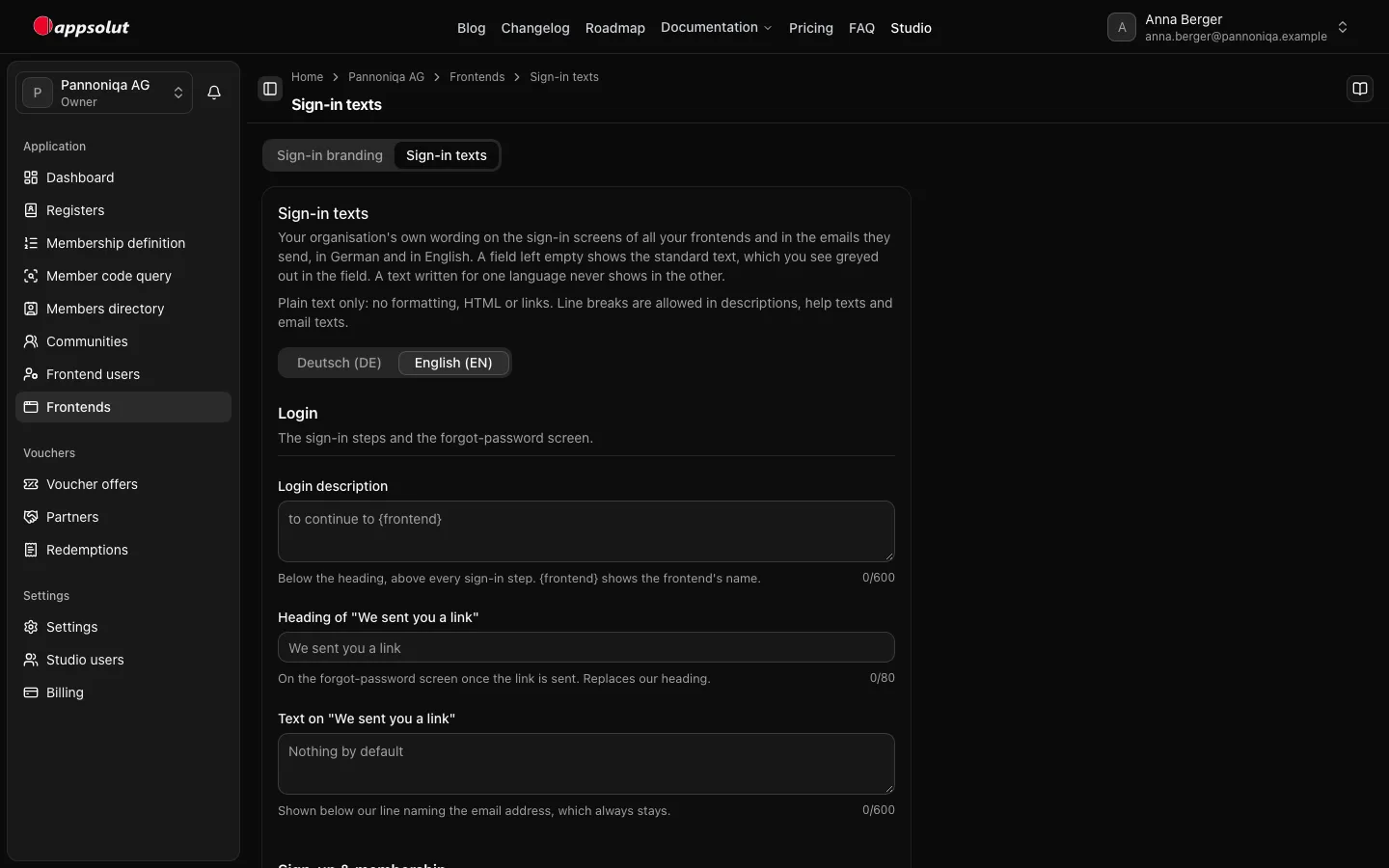
- Choose the language to edit: "Deutsch (DE)" or "English (EN)". Each empty field shows the standard text greyed out.
- Fill in the texts you want to change. They are grouped by where they appear:
- Login: the description below the heading of every sign-in step, and the heading of the "We sent you a link" card after "Forgot password?" with an extra text for it.
- Sign-up & membership: the heading of the "Check your email" card after the sign-up with an extra text for it, the membership heading with its text for frontends where membership is required and where it is optional, and the labels and help texts of the member code and challenge code fields.
- Support: the heading and the text of the support request form.
- Emails: the heading and the text above the code in the verification code email, and the heading and the text above the button in the password reset email.
- Choose "Save German texts" or "Save English texts". Each language is saved on its own. What you typed in the other language stays in its tab until you save it too.
Rules for the texts
- Plain text only: no formatting, HTML or links. What you type is shown exactly as typed.
- Line breaks are allowed in descriptions, help texts and the texts of the emails, not in headings and labels.
- Headings and labels have at most 80 characters, help texts 300, and descriptions and the texts of the emails 600. The counter below each field shows how many you used.
- No placeholders, except
{frontend}in the login description, which shows the frontend's name, for example "Welcome to {frontend}". - Spaces at the start and the end are removed. A field with only spaces counts as empty.
Good to know
- On the "Check your email" and "We sent you a link" cards, the line naming the email address always stays. Your text is shown below it.
- The membership texts show in the sign-up's membership section and on the membership step. Where a field is empty, each place keeps its own standard text.
- A member code label applies wherever the sign-in screens ask for the member code: the sign-up, the membership step and the support form, where "(optional)" is added. It does not change the Studio or the mails.
- Each email uses your texts in its own language. The verification code email goes out in the language the person is using on the sign-in screens when they sign up. The password reset email goes out in the language saved for the frontend user, which can differ from the language of the screen where they asked for the reset. Your heading and text replace ours; the subject, the code or the button with its link, how long it is valid, the "ignore this email" line and the footer always stay, because they state what the system enforces. The heading is the first thing people read, so keep it short.
- If someone else saved the texts of a language while you were editing, the Studio says so. Reload the page to see their changes, then make yours again.
- Every change is recorded with who made it.
What frontend users see on the sign-in surface is described in Login with appsolut.